Custom Email Templates
Custom email templates, give you the ability to personalize the content and messaging of system emails sent to your customers — all while keeping your brand front and center.
How It Works
Setting up a custom email template involves three main steps:
1. Create Your Template
To create a new template:
Navigate to Settings
Click on Emails
Click + Create Template
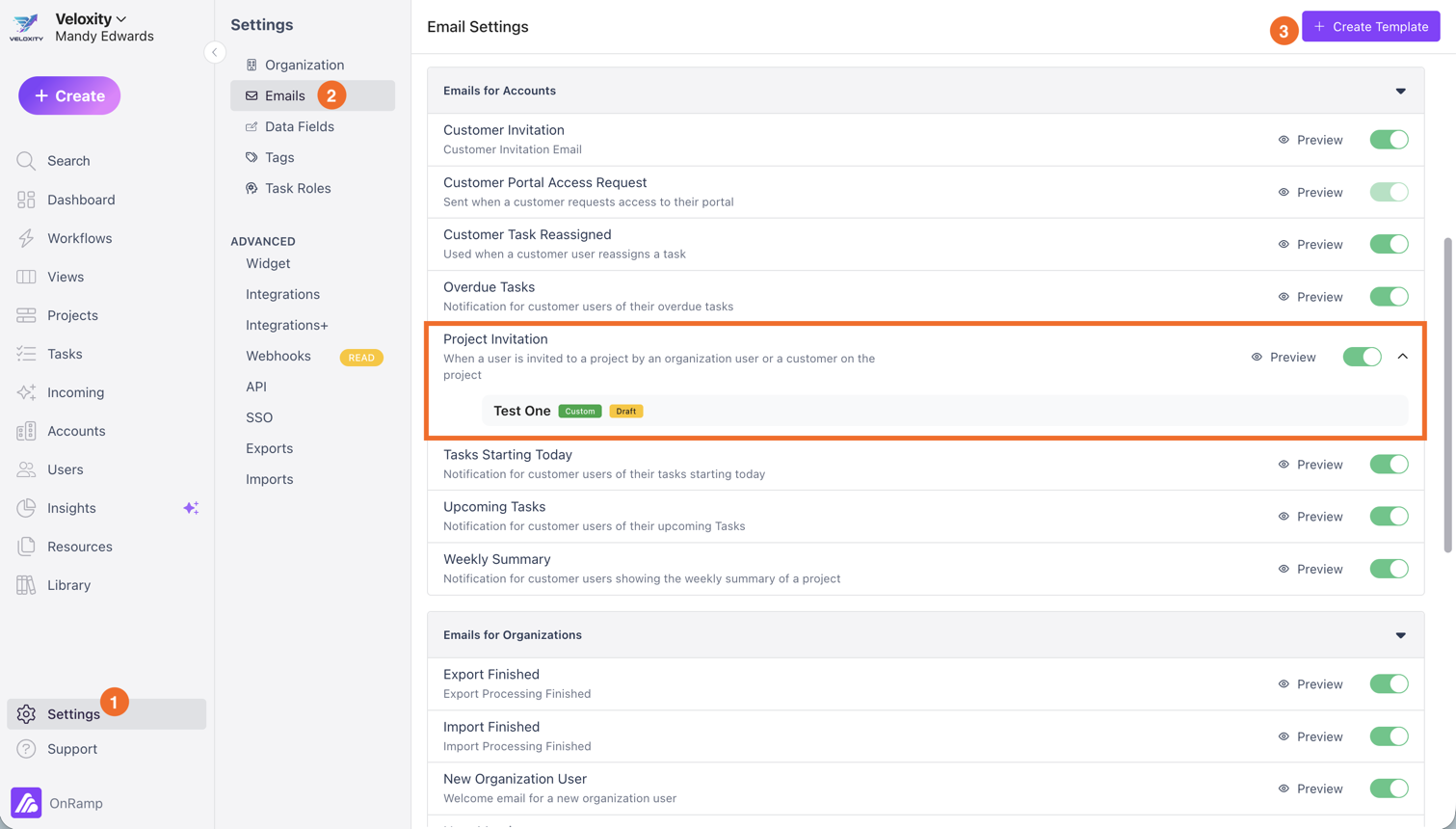
This will open the Email Template Editor, where you can begin building your template. Be sure to publish the template when you're ready to use it.
2. Customize Your Template
Once inside the editor, you can configure the content and structure of your email.
What You Can Customize
Template Name (internal only)
Subject Line (supports merge fields)
Body Content (rich text editor)
CTA Button Text (e.g., “Accept Invite & Join Project”)
Recipients (eleven email types — see Choosing Who Receives the Email below)
You can type / in the editor to insert merge fields, which dynamically populate with real data when the email is sent.
Merge Fields
Merge Fields allow you to personalize emails using dynamic data. Available categories include:
Project Fields (e.g., project name, custom fields)
Task Fields (e.g., task due date)
Account Fields (e.g., account name)
Owner Fields (e.g., recipient name, email)
Org Fields (e.g., your organization name)
Use the Fields tab to browse and copy available fields.
Preview & Testing
Auto-save keeps your draft updated as you work
Use Send Test Email to preview how the email will appear in an inbox
3. Activate Your Template in a Playbook
Creating a template does not automatically send it to customers.
To use your template, assign it within a Playbook. Once mapped, it will be used for all relevant emails triggered by that Playbook. Here's how:
Go to the Library.
Choose the playbook you want to use this email.
Click on the email dropdown.
Choose the new custom email you created.
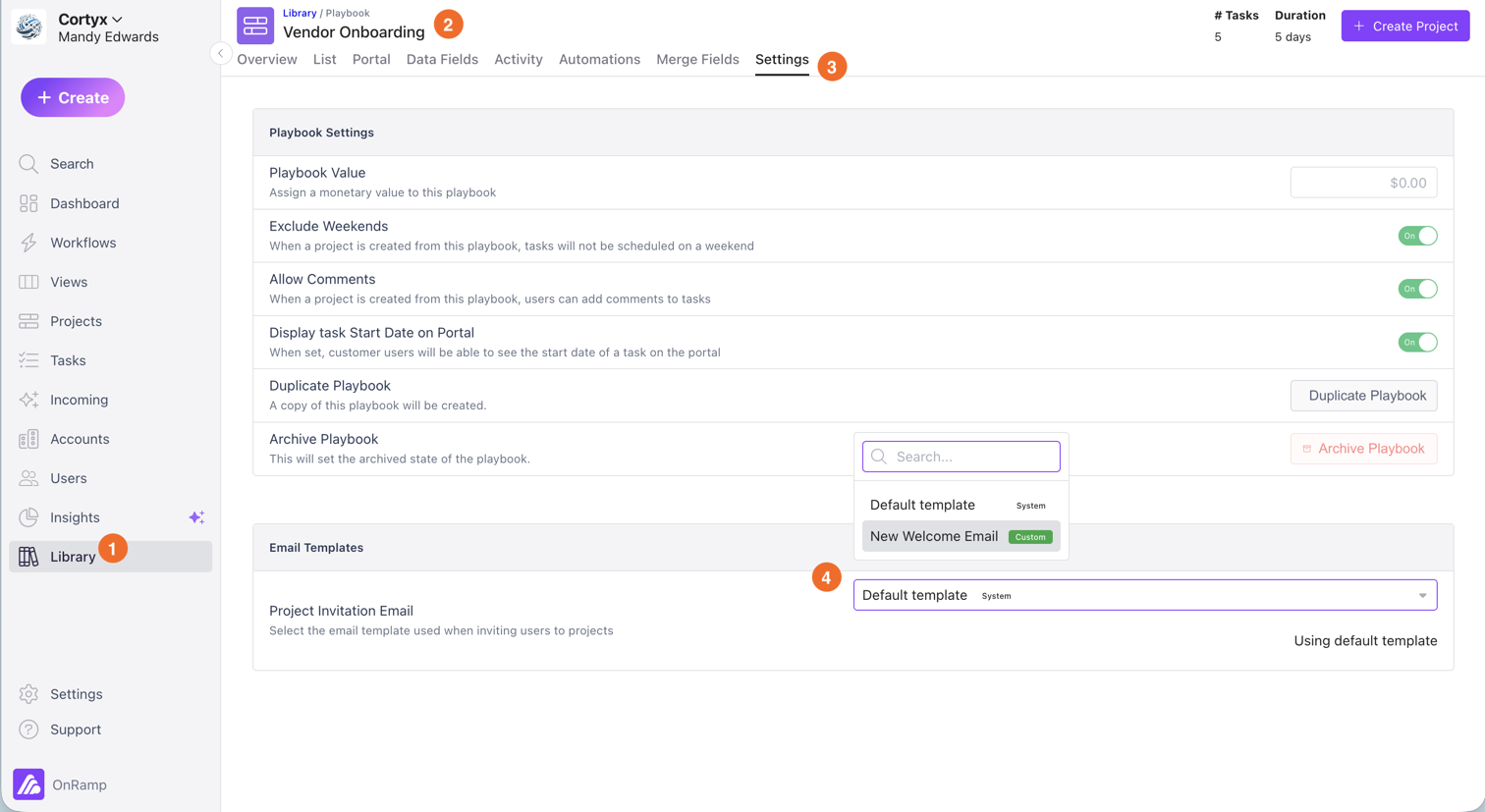
Important: Only published templates are used in live emails.
Editing & Publishing Templates
All changes are saved as drafts until you publish them.
Click Publish to make your changes live
Click Discard Draft to revert to the last published version
You can safely make updates without impacting customers until you publish.
Choosing Who Receives the Email
On eleven email types, a custom template can decide who receives the email by project role, by the project owner, or both. You set this once on the template, and every project using that template follows it.
There are two ways it works, depending on the email:
Send only to these people. On three project emails, the people you pick replace the usual recipients. Use it to send Project Completed to your CSM and Executive Sponsor instead of the whole project.
Also send a copy to these people. On eight task and project emails, the usual recipient still gets their email, and the people you pick also get a copy. Use it so an Implementation Lead hears about every task assignment on their projects.
You don't pick names. You pick a role, such as CSM, and each project sends to whoever holds that role on it. If you're new to roles, start with Using Roles in Playbooks and Projects.
Which Emails Support It
Eleven emails support recipient selection today. Every other email, including Project Invitation, comment and note emails, digests and login emails, always goes to its usual recipients. Recipient selection is only available on a custom template; the system default emails keep their usual recipients.
Mode | Who gets it without a selection | What your selection does | |
Project Completed | Send only to these people | All active project members | Replaces the usual recipients |
Project End Date Updated | Send only to these people | Active project members, except the person who changed the date | Replaces the usual recipients |
Weekly Summary | Send only to these people | Customer users on the project | Replaces the usual recipients. Can include internal role holders |
Task Assigned | Also send a copy | The new assignee | Adds a copy for each selected role holder |
Task Completed | Also send a copy | The project owner, the assignee if they're on your team, and task collaborators. Not the person who completed the task | Adds a copy for each selected role holder |
Task Unblocked | Also send a copy | The task's assignee and task collaborators | Adds a copy for each selected role holder |
Task Due Date Changed | Also send a copy | The project owner and, on internal tasks, the assignee and task collaborators on your team. Not the person who changed the date | Adds a copy for each selected role holder |
Customer Task Reassigned | Also send a copy | The newly assigned customer | Adds a copy for each selected role holder |
Project Created | Also send a copy | The project owner | Adds a copy for each selected role holder |
Project Owner Changed | Also send a copy | The new project owner | Adds a copy for each selected role holder |
Project User Added | Also send a copy | The member who was added | Adds a copy for each selected role holder |
How to Choose the Recipients
You need to be a Super Admin or Creator to edit email templates. Collaborators, Contributors and Integrators can't open the template editor.
Go to Settings → Emails and open a custom template for one of the eleven emails above, or click + Create Template to make one.
In the editor, open Details and find the Recipients section.
Choose who gets the email:
Tick Project owner to include the project's owner. It carries a Not a role badge because the owner is a field on the project, not a role.
Pick one or more roles from the role list. Internal and customer roles are listed in separate groups.
Check the preview. On the emails that send copies, switch the preview to the role-holder view to see the note that copies carry at the top.
Click Publish. Recipient changes, like content changes, stay in draft until you publish, and Discard Draft puts back the last published selection.
Make sure the template is in use: as your organization default, on a playbook (step 3 above), or on a single project in Project Settings. A playbook's template is copied onto each project when the project is created, so it reaches new projects only. Projects that already exist keep the template they have; to change one, assign the template on that project in Project Settings.
To go back to the usual recipients, untick Project owner, clear every role, and publish again.
If the role list is empty, your organization has no active roles yet. Project owner still works on its own. To add roles, see Setting Up Task Roles.
How Roles Decide Who Gets the Email
OnRamp has two things called roles, and only one of them picks email recipients.
User type | Project role | |
Examples | Super Admin, Creator, Collaborator, Contributor, Integrator, Customer | CSM, Implementation Lead, IT Contact, Executive Sponsor |
What it controls | What someone can see and do in OnRamp | Who does a job on a given project |
Where it's set | Settings → Users | Defined in Settings → Task roles, then given to people on each project |
Picks email recipients? | No | Yes |
Learn more |
When an email sends, OnRamp looks up who holds each selected role on that project at that moment. A person counts as a role holder only if all of these are true:
They hold the role on this project, set at project creation (Choose a coworker for each role), on the Members tab, or on their member card.
They're an active member of the project, not removed.
Their user account is active.
The role is active. Holders of an archived role get no role-based email, even though the Members tab still shows the role as Name (archived).
For copies, team members must also be able to open that task or project themselves. A copy never shows someone something they couldn't already see.
Someone who holds two selected roles, or holds a role and is also the project owner, gets one email, not two.
Internal and customer roles
A role is either internal or for customer users, and that choice is permanent. Both kinds appear in the Recipients list.
Send only to these people: internal and customer holders are both sent to. A Weekly Summary routed to an internal role reaches your team, even on a project with no customer users.
Also send a copy: a customer holder gets a copy only when the email it copies was sent to a customer, and only for a task customers can see. Internal tasks are never copied to customers. Team members get copies either way.
Rules that still apply to everyone
Choosing recipients never gets around your other email settings. A person is still skipped if the email type is turned off for your organization, emails are paused for the project or for internal or customer users, or they paused notifications or opted out of emails. See Manage OnRamp Notifications and Email Settings.
What Each Mode Does
Send only to these people
Project Completed, Project End Date Updated, Weekly Summary
Only the project owner (if ticked) and the selected role holders get the email. Nobody else does, including the people who would normally get it. If the person who made the change is the owner or holds a selected role, they get it too.
If nobody qualifies, the email is skipped. OnRamp never falls back to the usual recipients.
When that happens, the email template section of Project Settings shows when the email was last skipped, with the message no eligible project recipients were found. The warning also appears when the template is inherited from your organization default.
The project owner gets the email even if they aren't a member of the project.
Weekly Summary picks its recipients when the weekly emails are queued. A role change after that applies from the next week's summary.
Also send a copy
Task Assigned, Task Completed, Task Unblocked, Task Due Date Changed, Customer Task Reassigned, Project Created, Project Owner Changed, Project User Added
The usual recipient gets exactly the email they got before.
Each selected role holder gets a copy of the same email, with a note at the top: This email was sent to Jane Doe (assignee). You're getting a copy because you're the CSM on Acme Onboarding.
Links and buttons in a copy belong to the person reading it, never to the original recipient.
Someone who already gets the usual email doesn't also get a copy. The person who made the change, such as assigning a task, completing it, changing its due date, creating a project or changing its owner, never gets a copy of their own action.
If every usual recipient is filtered out, for example they're paused or opted out, no copies are sent.
Invitation emails are never copied.
Here the project owner is included only if they're an active member of the project.
There's no skip warning in Project Settings for copies. If an expected copy doesn't arrive, check the rules in this section.
Example setups
Goal | Select | |
Tell leadership, not the whole project, when onboarding finishes | Project Completed | Project owner + Executive Sponsor |
Send only the customer's main contact a date-change notice | Project End Date Updated | Customer Champion (a customer role) |
Give your CSM a weekly view of each project | Weekly Summary | CSM (an internal role) |
Keep the Implementation Lead informed about every assignment | Task Assigned | Implementation Lead |
Let your Solutions Architect see every finished task | Task Completed | Solutions Architect (an internal role) |
Tell your CSM whenever a task's due date moves | Task Due Date Changed | CSM (an internal role) |
In the Weekly Summary example, the usual customer recipients stop getting the summary. To keep them too, also select the customer roles they hold.
Recipient FAQ
I published roles, but the usual people still got the email. Open Project Settings and check which template that project uses. A template assigned on the project wins over your organization default. A playbook's template is copied onto a project only when the project is created, so projects made before you assigned or changed it keep their existing template. Also check the template was published, not just saved as a draft.
Nobody got Project Completed. Open Project Settings and look for the skip warning on the email template. Usually nobody on the project holds the selected roles, the holders were removed from the project, or the role was archived.
A role holder didn't get a copy. Go through the list: are they already a usual recipient, the person who made the change, paused, opted out, or removed from the project? Can they open the task or project themselves? For a customer holder, was the email sent to a customer, and is the task visible to customers?
Customer role holders rarely get copies. The copy's note names one usual recipient, and a customer holder only gets a copy when that recipient is a customer. Most of these emails go to your team. Task Completed, for example, goes to the project owner first. So customer holders mainly get copies of Customer Task Reassigned and Task Unblocked. That keeps internal-only details from reaching customers.
Can I pick specific people instead of roles? No. Give those people a role on the project, then select that role. Project owner is the only option that isn't a role.
Do roles change what someone can see in OnRamp? No. Project roles decide who gets role-based email and task assignment. Access comes from the user type. Roles never appear in the Customer Portal.
Where can I see what was sent? Every email, copies included, appears in the project's email activity. See Viewing Email Activity for a Project.
Will more emails support this? Yes. Comment and note emails aren't supported yet. This article will list more as they're released.
Related articles: Using Roles in Playbooks and Projects · Setting Up Task Roles · Understand User Types and Permissions in OnRamp · Roles & Permissions: Deep Dive · Manage OnRamp Notifications and Email Settings · Customer Didn't Receive a Message
Branding
Email branding is automatically applied based on your organization settings.
To update branding:
Go to Settings → Organization
Configure:
Logos (Details tab)
Colors & button styling (Portal tab)
All changes will apply across all email templates and other branded areas in OnRamp.
Additional Insights
Template Performance
Within the Details tab, you can view:
Usage — Number of active Playbooks and Projects using the template
Analytics — Email performance over 7, 30, or 90 days
Analytics only reflect the published version of a template.
Key Takeaway
Custom email templates give you full control over messaging while keeping branding consistent. Create, customize, and activate templates through Playbooks to deliver a more tailored customer experience.
