Understand User Types and Permissions in OnRamp
Last updated: July 19, 2026
Not everyone on your team needs the same access to OnRamp — and that’s by design. User types let you give each person exactly the access they need to do their job, without giving them access to things they don’t. Here’s how each role works.
The User Types
User Type | Ideal For | What They Can Do |
Super Admin | CS Leadership, Operations, IT | Full platform access — users, settings, data fields, integrations, and all project data. |
Integrator | CS Ops, RevOps, IT | Configure integrations (CRM, Zapier, Webhooks). Cannot create or own projects. |
Creator | Onboarding Leads, CSMs | Create and manage projects and playbooks. Cannot manage users or platform settings. |
Collaborator | Onboarding Specialists, Exec Stakeholders | Participate in assigned projects, complete tasks, leave comments, view project data, and access Views & Insights. |
Contributor | Cross-Functional Stakeholders | Complete assigned tasks and interact with the onboarding team. Very limited visibility — no Views or Insights. |
Customer | Your Customers | Join projects by invite, complete tasks, view shared resources. No internal access. |
Customer users are unlimited and only see what’s explicitly shared with them in a specific project.
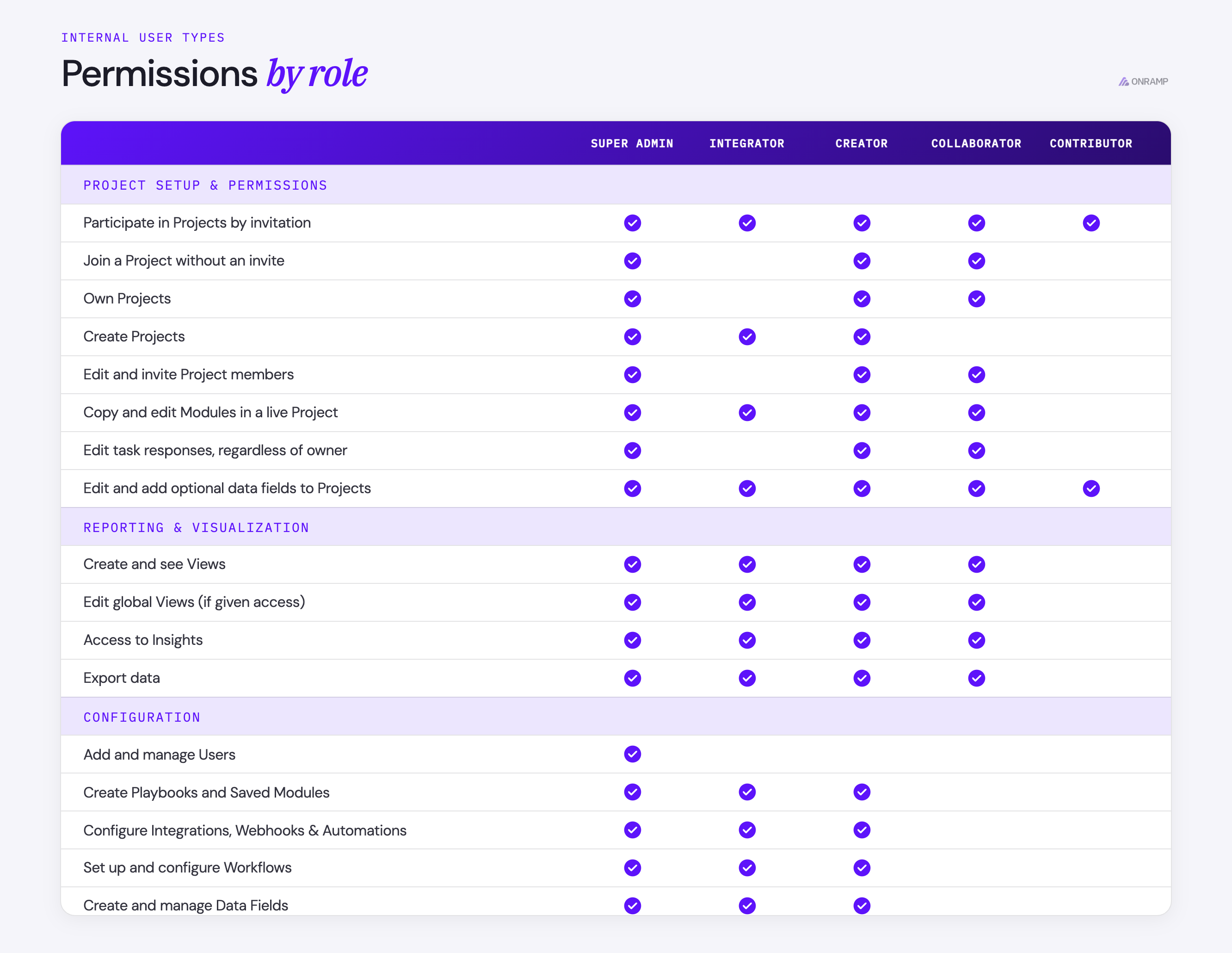
Collaborator vs. Contributor — The Key Difference
Both roles can complete tasks, leave comments, reassign tasks, and interact with customers. The distinction is visibility: Collaborators have access to Views and Insights; Contributors do not. Use Collaborator for anyone who needs to track progress across projects. Use Contributor for teammates who only need to show up and complete their specific tasks.
Add or Update a User’s Role
Go to Settings > Users.
Click + Add User or select an existing user.
Choose the appropriate User Type.
Click Save.
To invite a Customer User, use the Invite option directly from inside a project. They’ll only see what’s shared with them in that project.
Tips & Troubleshooting
Seeing “Access Not Permitted”? This appears when a Contributor or Customer tries to access a restricted area. Check their user type and upgrade if needed.
Not sure what role to assign? Default to Collaborator for most internal team members. Use Creator or Super Admin for leads who manage projects or the platform.
Managing integrations only? Use the Integrator role for technical team members who don’t need project access.