Text Notifications for Customer Users (Beta)
Last updated: October 6, 2026
SMS/Texting lets customer users who opt in receive short text messages about their tasks, each with a secure link back to the portal. You choose which playbooks and projects send texts. Each customer chooses whether to receive them.
At a glance
How do my end users use it? They opt in once from the customer portal by verifying their mobile number. Then they tap the link in a text to open the task, or reply to the text to answer simple questions.
When do they get texts? When a task is assigned, when a task is due tomorrow, when a task needs their input, and when you send a nudge.
How is timing managed? You control which playbooks and projects send texts. No texts are sent between 9 p.m. and 8 a.m. in the recipient's time zone, and each person has a daily limit.
What is it good for? Reaching customer contacts who rarely open email or the portal: assignments, deadline reminders, stalled-task nudges, and quick approvals by reply.
How your end users use it
Texting is opt-in for every customer user, and each person manages their own number. You can't add a number on someone's behalf.
They see an invitation in the portal. A text-updates prompt appears on a project or playbook home page. They can dismiss it and set up later from Notification settings in the account menu. Aero in the portal can also offer a Set up text updates card.
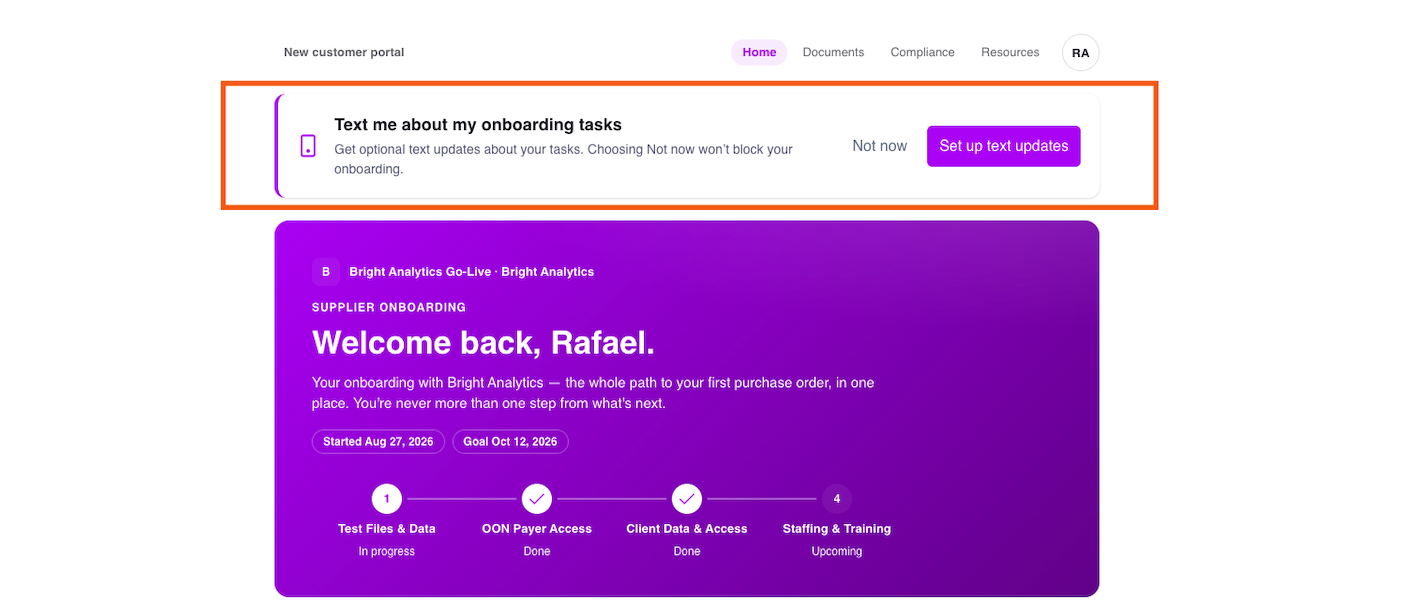
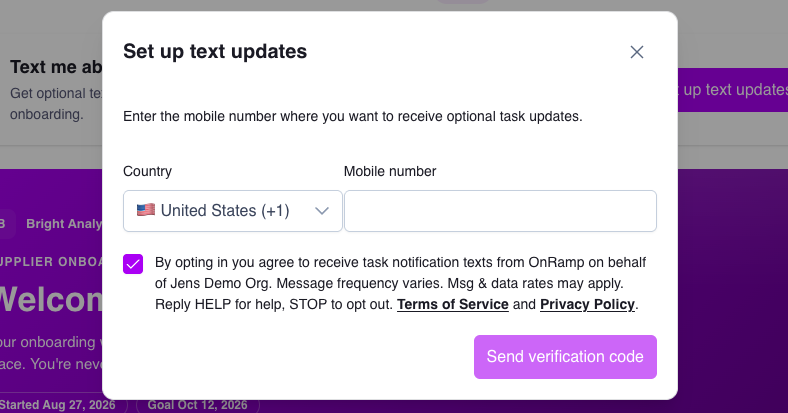
They enter a mobile number and agree to the terms. The consent notice, terms, and privacy links are shown before anything is sent.
They enter the 6-digit code we text them. The code expires after 10 minutes. A new code can be requested every 30 seconds, up to 3 sends.
They get a confirmation text and the setting shows On. From there they can pause, change their number, or remove text updates at any time.
What a customer sees
OnRamp for Acme: You were assigned the task "Security review" in "Launch". Open task: [secure link]
Do not reply
OnRamp for Acme: The task "Sign data agreement" in "Launch" needs your input.
Question: Is the document ready?
Reply 1 for Approve, 2 for Decline.
Customer: 1
OnRamp: Got it. Your task response was saved.
Replying by text (Coming Soon)
When a task needs input or you nudge about it, and the next step is a yes/no, single choice, drop-down, or short answer, the customer can answer by replying with a number or a short answer. Replies work for 24 hours after the text is sent. If a reply can't be applied, the customer gets a link to finish the task in the portal. Most other texts say "Do not reply".
Always in their control
Replying STOP to any text opts the customer out right away. START opts them back in, and HELP returns help information. Pausing or removing text updates in the portal has the same effect. Each person's setting applies to your organization.
When they get texts
Text | Sent when | Delivery |
|---|---|---|
Task assigned | A team member assigns a task to a customer user, one task at a time or one task in a bulk edit. An automation can also assign tasks. | Right away for an assignment made by a person. Automated assignments are queued. |
Several tasks assigned | A team member assigns two or more tasks in one project to the same person at once. They get one summary text instead of one per task. | Queued |
Due tomorrow | A task assigned to them is due the next day and is not started, in progress, or blocked. Applies to published, active projects with texting on. | 10:00 a.m. in their local time. One digest per person per day, even across projects. |
Needs your input | The customer answers one step and the next step is waiting on them. | Queued. Includes a reply prompt when the question can be answered by text. |
Nudge | A team member sends a nudge and selects Also send SMS. The dialog shows how many people can receive it before you send. | Right away for one task and one recipient. Larger nudges are queued. |
Customers also receive the verification code during setup and a confirmation text when they finish. Each text is recorded in the task's activity.
How timing and sends are managed
Three switches, all of which must be on
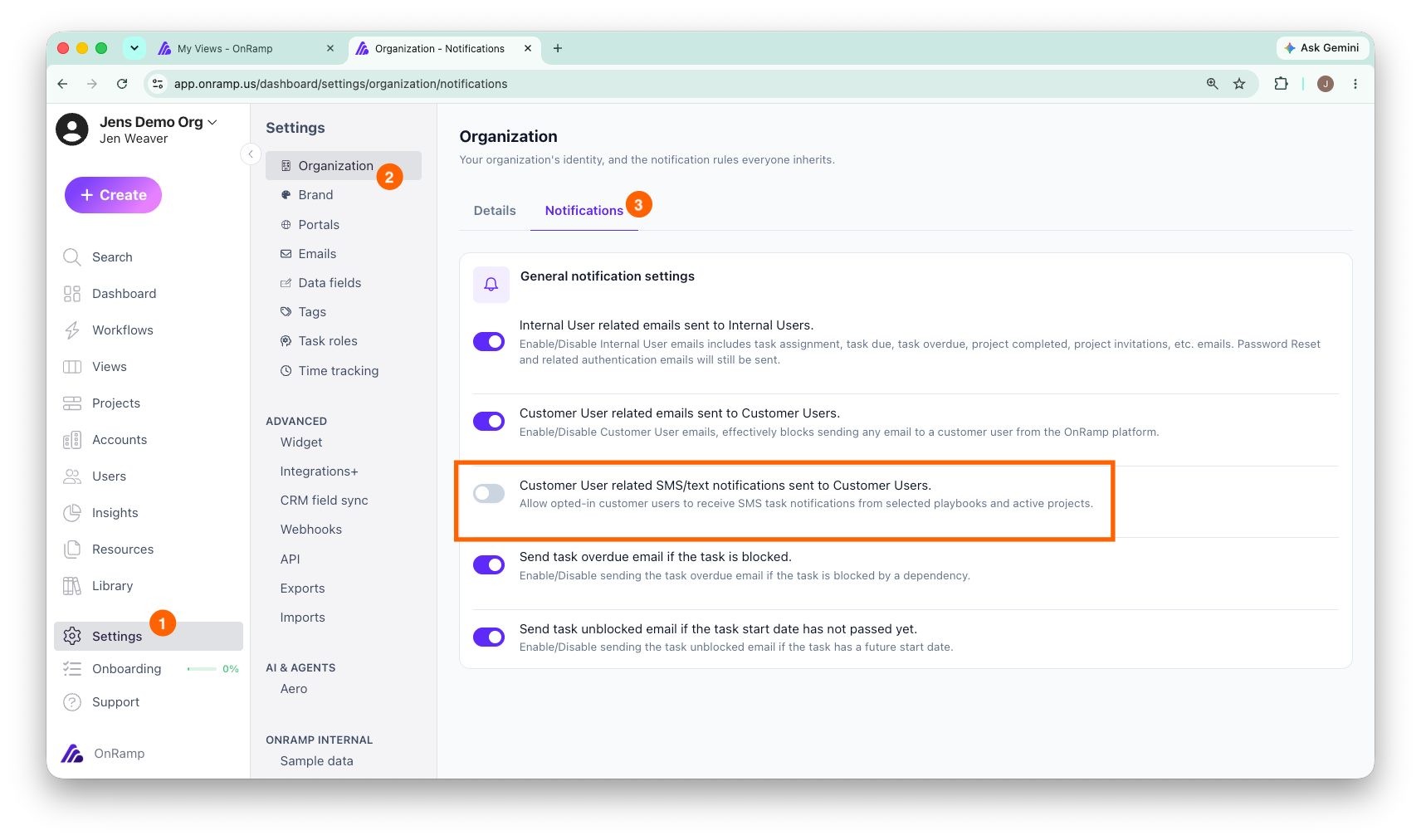
Organization. An Owner turns on SMS/Texting in Settings > Organization and chooses the playbooks and active projects to include.
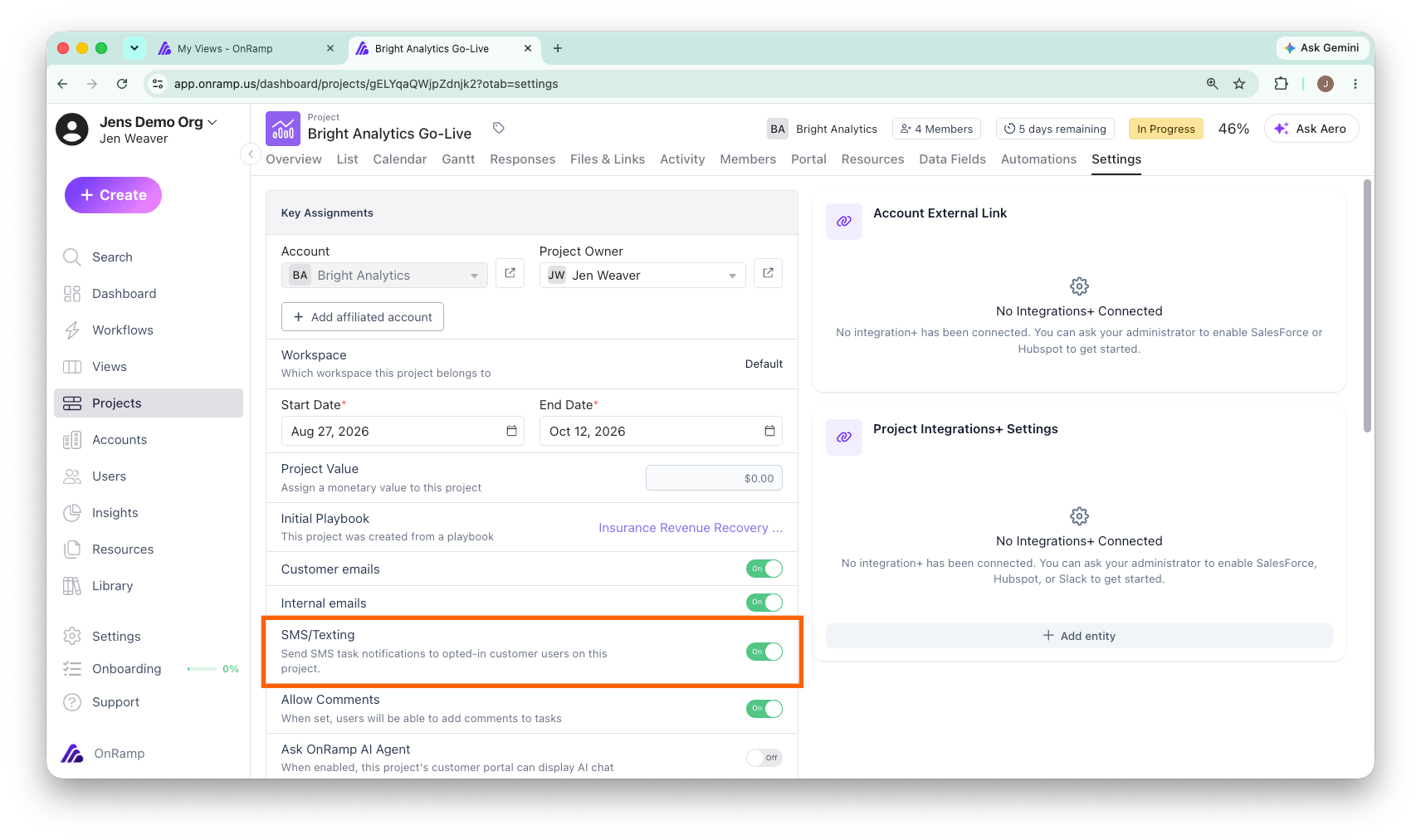
Playbook and project. Each playbook and each project has an SMS/Texting toggle in its settings. The project toggle is what decides whether a project sends texts. New projects copy the playbook's setting when they are created.
Customer. The person has a verified number, has given consent, and has not paused or stopped text updates.
Turning texting on, or changing the audience, never sends a message by itself. Texts start with the next task event. Turning it off stops future texts.
Send rules
Rule | How it works |
|---|---|
Quiet hours | No texts from 9:00 p.m. to 8:00 a.m. in the recipient's local time zone. A text created overnight is held and sent at 8:00 a.m. Quiet hours are fixed and can't be changed. |
Daily limits | Up to 10 texts and $1.00 of sending cost per person per local day. Nudges have their own count of 10. A text over the limit is skipped rather than delayed. |
Checked before every send | The organization and project are still on. The number is verified, consent is granted, and the person hasn't paused or stopped. The time zone and country are supported. |
What you can do
Start with one playbook or a few projects, then widen.
Pause texting for a single project with its toggle.
See whether a customer user has opted in, with a masked number, on their user detail.
Leave Also send SMS unchecked on any nudge.
Use cases
Start a task the moment it's assigned. A customer's IT lead is assigned the SSO setup task. The text reaches their phone right away and opens the task in one tap.
Prevent missed deadlines. One text at 10 a.m. the day before covers every task due tomorrow, across all of their projects.
Unstick a stalled task. Nudge by email and SMS together. Check the recipient count in the dialog first.
Collect quick answers and approvals. Approvals, picking an environment, or a short answer can be done by replying, with no login. The response is saved to the task.
Run a controlled rollout. Turn texting on for one high-touch playbook, such as enterprise onboarding, and compare time-to-complete against projects without it.
Keep go-live on schedule. In the final weeks, when every task blocks launch, texts get a response where another email might not.
Good to know
Who can change settings. Organization-level texting is managed by Owners. Playbook and project toggles follow your usual permission to edit those settings.
Message wording. Texts use standard OnRamp wording that always includes your organization name and a link to the task.
Links. Each text carries a secure link to the task that expires. Text content is kept for 30 days.
Where it works. Texts go to mobile numbers in supported countries. The customer sees the supported countries during setup. Standard message and data rates may apply to them.
Customer users only. Texts are sent to customer users, not to your team. Team notifications stay in email and the app.