Custom Email Templates (Beta)
Last updated: April 22, 2026
Custom email templates, give you the ability to personalize the content and messaging of system emails sent to your customers — all while keeping your brand front and center.
NOTE: Custom templates are currently available for the Project Invitation email.
How It Works
Setting up a custom email template involves three main steps:
1. Create Your Template
To create a new template:
Navigate to Settings
Click on Emails
Click + Create Template in the top-right corner
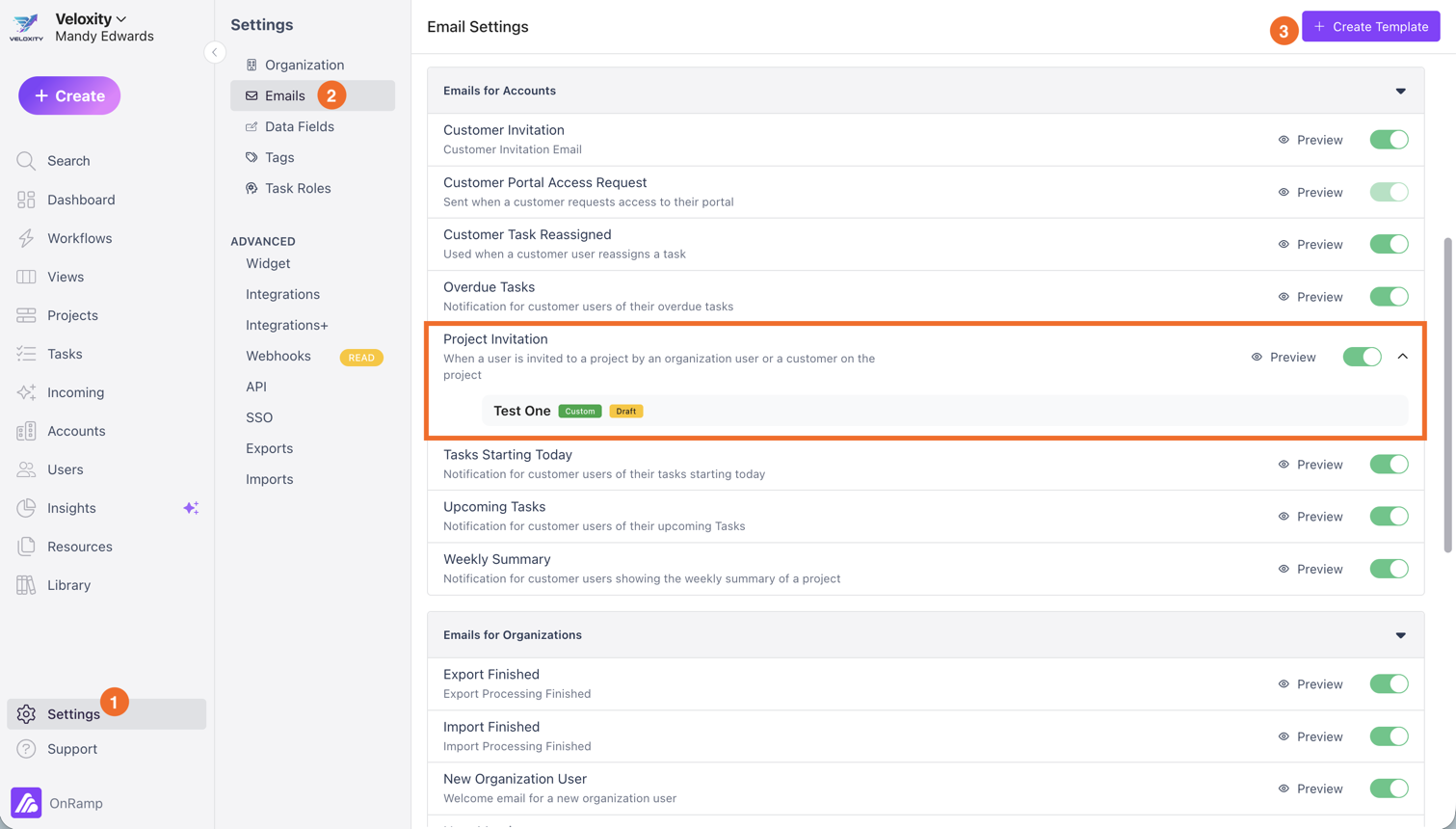
This will open the Email Template Editor, where you can begin building your template. Be sure to publish the template when you're ready to use it.
2. Customize Your Template
Once inside the editor, you can configure the content and structure of your email.
What You Can Customize
Template Name (internal only)
Subject Line (supports merge fields)
Body Content (rich text editor)
CTA Button Text (e.g., “Accept Invite & Join Project”)
You can type / in the editor to insert merge fields, which dynamically populate with real data when the email is sent.
Merge Fields
Merge fields allow you to personalize emails using dynamic data. Available categories include:
Project Fields (e.g., project name, custom fields)
Account Fields (e.g., account name)
Owner Fields (e.g., recipient name, email)
Org Fields (e.g., your organization name)
Use the Fields tab to browse and copy available fields.
Preview & Testing
Auto-save keeps your draft updated as you work
Use Send Test Email to preview how the email will appear in an inbox
3. Activate Your Template in a Playbook
Creating a template does not automatically send it to customers.
To use your template, assign it within a Playbook. Once mapped, it will be used for all relevant emails triggered by that Playbook. Here's how:
Go to the Library.
Choose the playbook you want to use this email.
Click on the email dropdown.
Choose the new custom email you created.
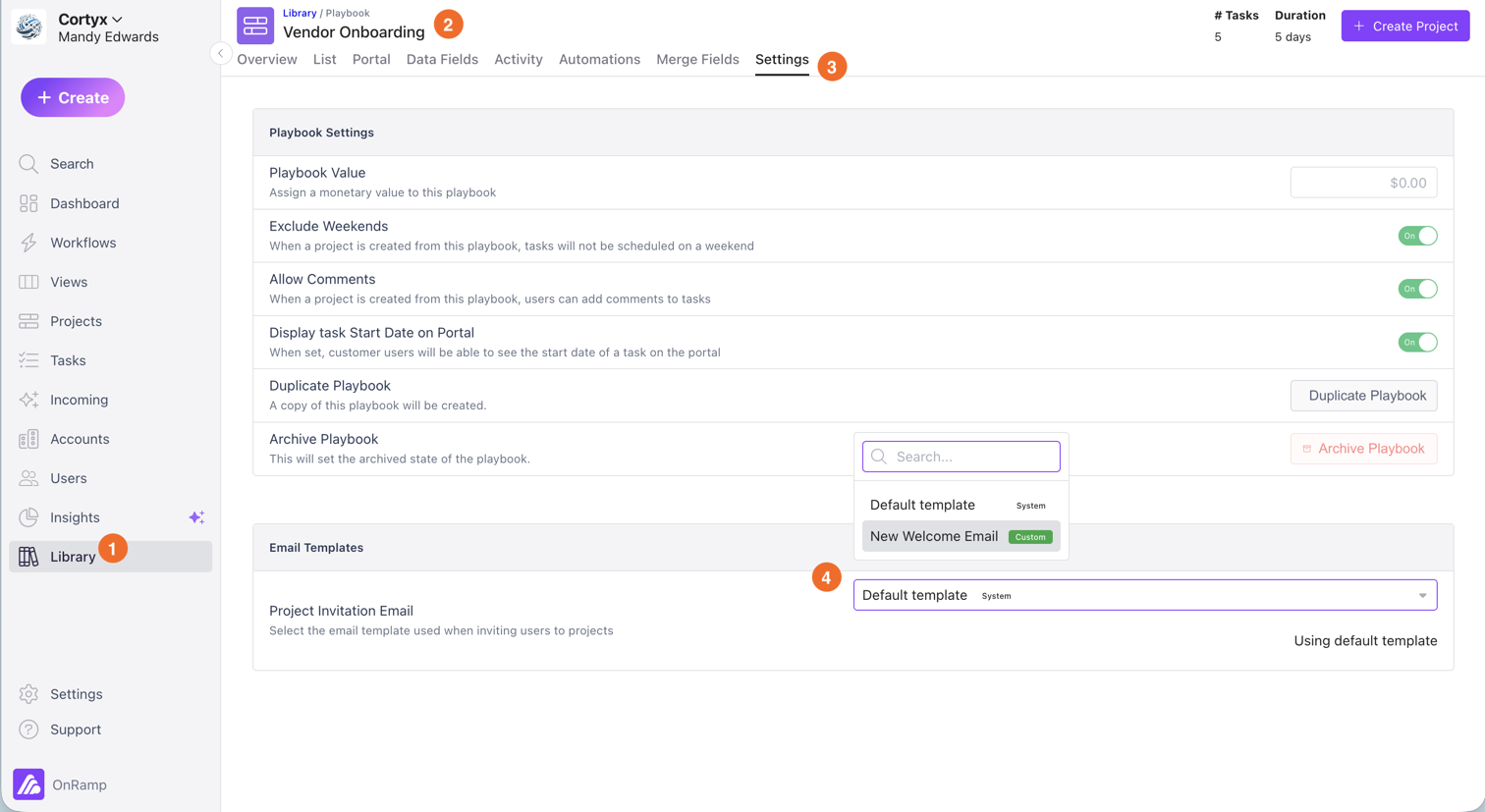
Important: Only published templates are used in live emails.
Editing & Publishing Templates
All changes are saved as drafts until you publish them.
Click Publish to make your changes live
Click Discard Draft to revert to the last published version
You can safely make updates without impacting customers until you publish.
Branding
Email branding is automatically applied based on your organization settings.
To update branding:
Go to Settings → Organization
Configure:
Logos (Details tab)
Colors & button styling (Portal tab)
All changes will apply across all email templates and other branded areas in OnRamp.
Additional Insights
Template Performance
Within the Details tab, you can view:
Usage — Number of active Playbooks and Projects using the template
Analytics — Email performance over 7, 30, or 90 days
Analytics only reflect the published version of a template.
Key Takeaway
Custom email templates give you full control over messaging while keeping branding consistent. Create, customize, and activate templates through Playbooks to deliver a more tailored customer experience.