Creating Dynamic Booking Links When Project Owner Is Assigned After Project Creation
Last updated: August 21, 2026
Use case: If the Project Owner is not known until after project creation, here's how to automate adding an owner-specific booking link.
Audience: Super Admins
Why?
Playbook merge fields resolve only once—at the time of project creation. Thus, if a workflow assigns a fixed project owner that will distribute projects to their team after project creation, it is not possible to use a playbook merge field to pull in the Project Owner's booking link.
How?
By adding booking links to Project Owner profiles, a merge field that pulls in the booking link for the Project Owner, and an automation that adds a module when the Project Owner changes, we can successfully automate the addition of the correct booking link after project creation.
Merge fields inside this module are rendered when the module is added to the current project, so the booking link can reflect the updated Project Owner.
Summary of what we'll cover
This procedure guides you through the process of adding the following:
A
booking-linkdata field on the Internal User object.Each possible Project Owner’s booking link saved on their user profile.
A module in the Module Library with a task containing a merge field for
booking-link.An automation that runs when the Project Owner changes and adds that module to the project.
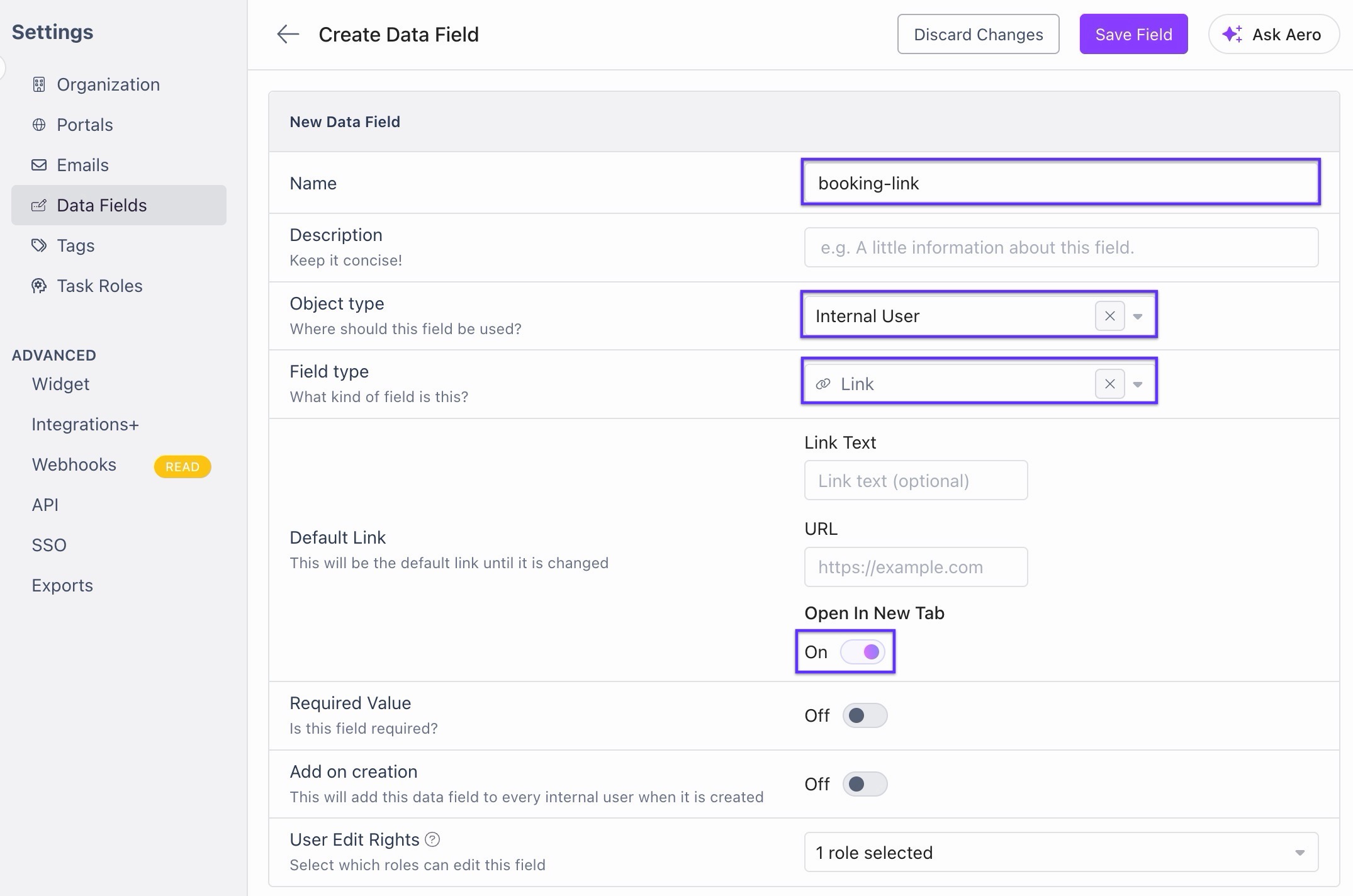
Step 1: Create an Internal User booking-link data field
Create a new data field for booking links.
Add Name (and optional Description if desired)
Object type > Internal User
Field type > 🔗 Link
Open In New Tab > toggle On
Required Value and Add on creation are optional and depend on your individual setup.
Add the booking-link field to each possible Project Owner’s user profile.
Enter each person’s personal booking link on their profile.
Step 2: Move the booking-link module to the Module Library
Open the playbook in edit mode.
Find the module where the booking link belongs, e.g. a "Kickoff" module.
Save the Kickoff module to the Module Library.
Delete the original version of the Kickoff module from the playbook — it will be added back when the Project Owner changes.
Step 3: Create and insert the merge field in the library module
Go to Library > Modules tab > Kickoff module > Merge Fields tab.
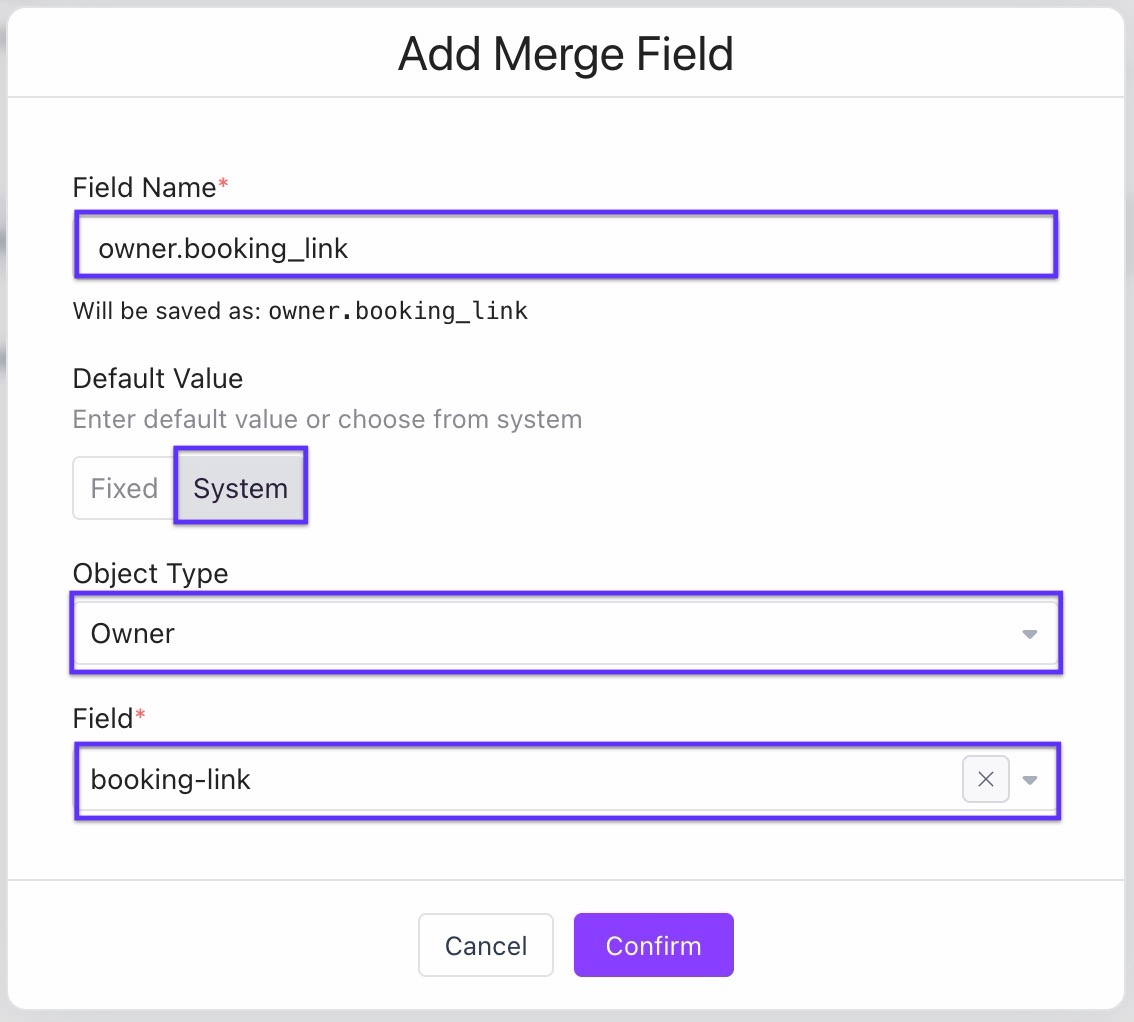
Add Merge Field.
Field Name = owner.booking_link
Object Type = Owner
Field = booking-link
Go to the List tab and locate the task where the booking link belongs.
Type out the exact text you want your customer to see, including the text they will click on to be redirected to the appropriate booking site.
Select the text that you want to be linked > + menu > 🔗 Link.
In the second text box, type
/, selectMerge Field>owner.booking_link.
Step 4: Create an automation to add a module when Project Owner changes
Go to the Automation Library > New Automation (note: this is not inside the module we've been editing).
Add a name and optional description.
Trigger = When project owner or status changes.
Select trigger again and leave only "Project Owner changes" selected.
Add an action step > Add a module.
Select the booking-link module from the Module Library.
Choose the module offset days, if needed.
Save the automation.
Step 5: Import the automation into the playbook
Go back to the original playbook that we copied/deleted the module from.
Go to the Automations tab > Import from library.
Select the automation you just created.
After importing, adjust where the module should be inserted in that specific playbook (if needed).
If you have other playbooks that require booking links to be added after the Project Owner changes, repeat steps 5, items 2-4 for each playbook.
Step 6: Test the setup
Create a test project from the playbook.
Assign the same Project Owner that your workflow normally assigns by default.
After the project is created, change the Project Owner to someone who has a booking link saved on their user profile.
Go back to the List tab and refresh the page.
Confirm that the module was added and that the booking link resolves to the new Project Owner’s booking link.
Important notes
This workaround does not rely on merge fields that were already rendered at project creation.
The automation adds the module right after the Project Owner changes so the merge field renders using the newly-assigned Project Owner.
Simpler alternative
If the team does not need each customer to book with the exact assigned Project Owner, use a shared team booking link or routing scheduling page instead. This avoids owner-based merge fields and does not require adding modules after project creation.