Create Project Automations
Last updated: August 19, 2026
Project Automations let you build no-code rules that trigger actions in OnRamp, Salesforce, HubSpot, or external systems whenever something happens in a project. Define a trigger (like "when a task is completed") and an action (like "update a Salesforce field") to keep data synced without manual updates.
You can build automations directly on a Playbook or Project (covered here), or build them once centrally in the Automations Library (Library → Automations) and reuse them across many playbooks, projects, and modules. See the Automations Library article for the reusable approach.
Before You Begin
Connect your Salesforce or HubSpot integration under Settings › Integrations.
Confirm you have permission to edit the Playbook or Project.
Automations can be set at the Playbook level (applies to all future projects from that Playbook) or the Project level (one project only). To build an automation once and apply it to many destinations at once, use the Automations Library instead.
Step 1: Open the Automations Tab
Go to Library › Playbooks (or open a live Project).
Click the Automations tab.
Click + Create.
Step 2: Choose a Trigger
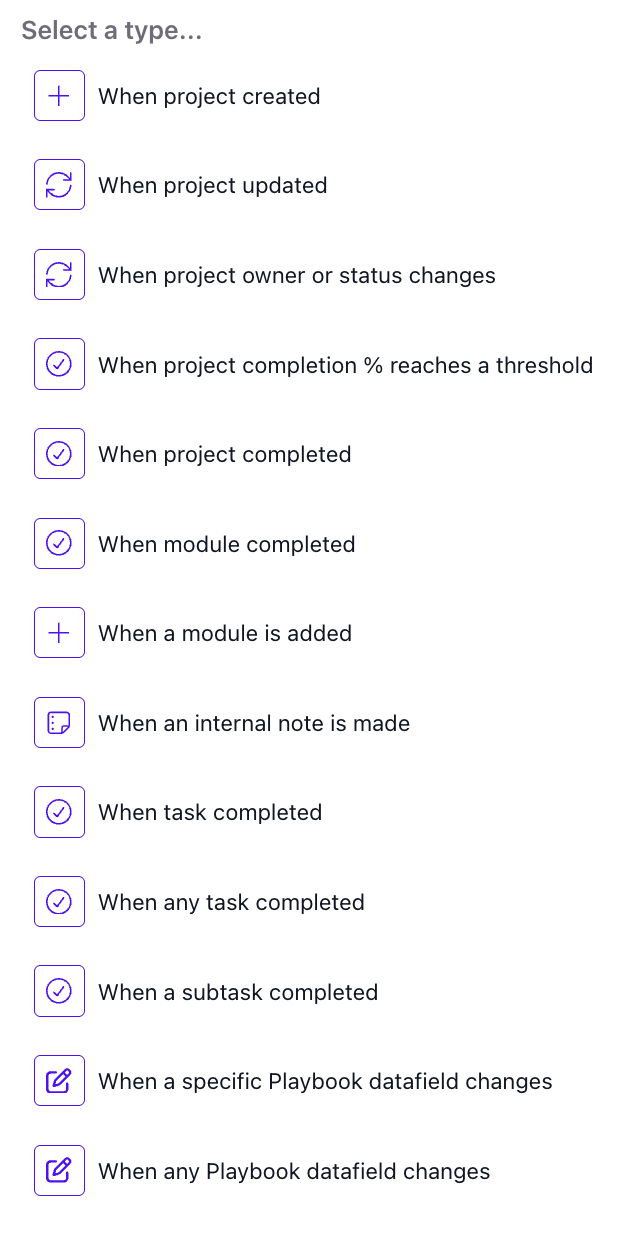
Triggers define when the automation runs. Available options:
When project created
When project updated
When project owner or status changes
When project completion % reaches a threshold
When project completed
When module completed
When a module is added
When an internal note is made
When task completed — you'll select the specific task
When any task completed
When a subtask completed
When a specific Playbook data field changes
When any Playbook data field changes
Notes:
Subtask answers can only be synced to Salesforce when using the "When task completed" or "When subtask completed" triggers. Other trigger types do not make subtask answer data available for field mapping.
At the Project level the data-field triggers read "Project data field" rather than "Playbook data field," and the labels omit the leading "When."
Step 3: Add an Action
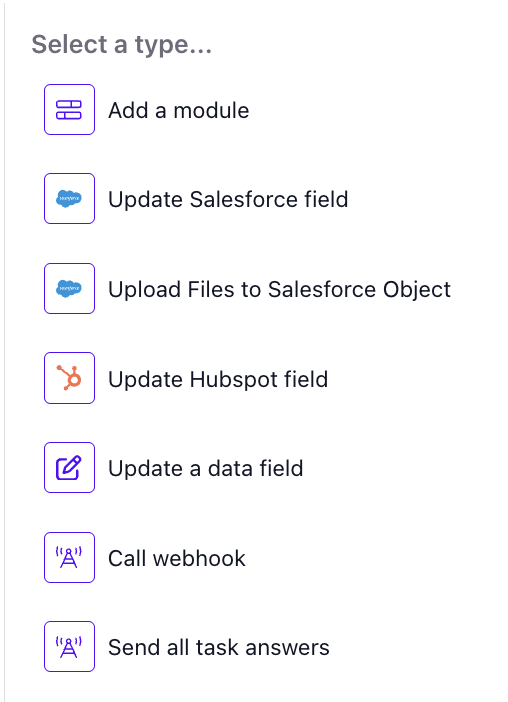
Click + Add Action and choose what happens after the trigger fires:
Update Salesforce field — sync OnRamp data into a Salesforce object
Upload Files to Salesforce Object — send task-uploaded files to Salesforce
Update HubSpot field — push field updates to HubSpot
Call Webhook — send data to any external endpoint
Send all task answers — send every answer from the triggering task to an external endpoint
Update a data field — set the value of an OnRamp data field (at the Project level this action is Change task data, which updates data on a task in the project)
Add a module — add a module to the project when the trigger fires (available where the Add-a-module action is enabled for your organization)
You can chain multiple actions under the same trigger to update multiple systems at once.
Step 4: Configure the Action
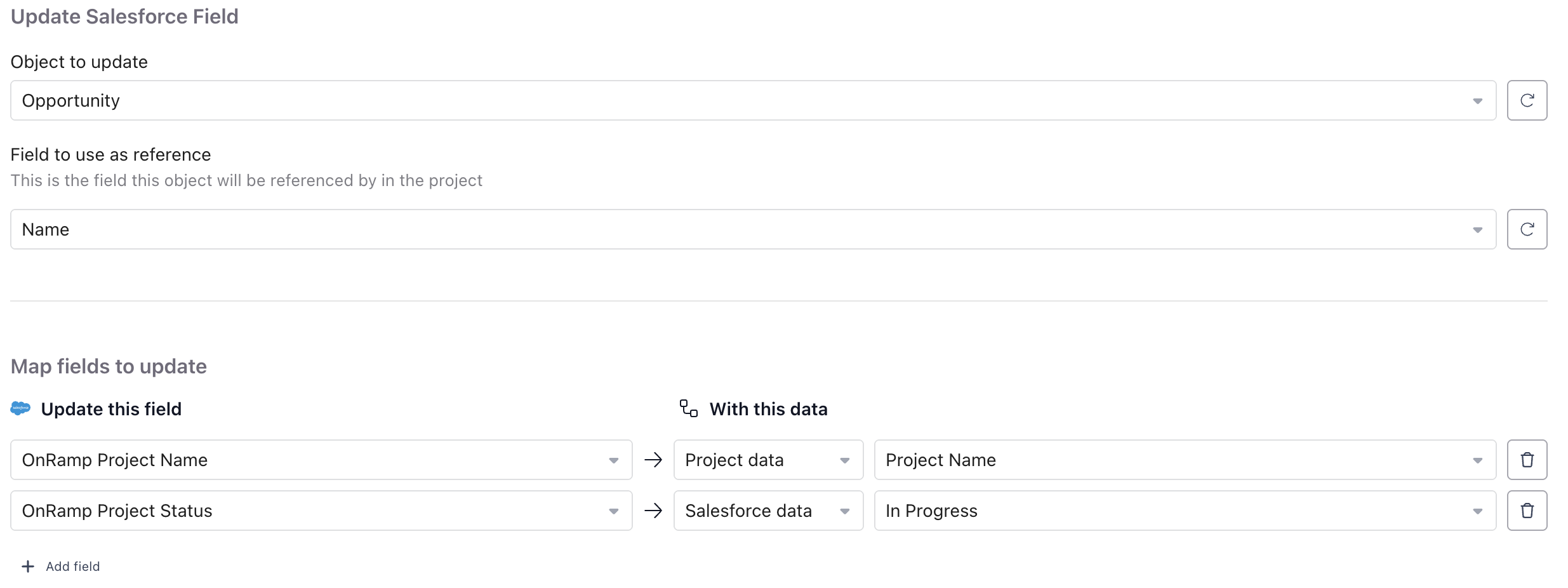
For Salesforce updates, you'll:
Select the Object to update (e.g., Opportunity, Account, or a custom object).
Choose a reference field to identify the correct record (commonly Name or an ID field).
Under Map fields to update, match Salesforce fields with data from OnRamp — task data, project data, task answers, or Salesforce data values.
CRM field type support: All Salesforce and HubSpot CRM field types are now available in automations — including multi-picklist, email, phone, boolean, ID, and reference fields. Previously unavailable field types can now be used in both trigger conditions and action mappings. If a value doesn't exist as a dropdown option in your CRM, OnRamp will automatically create it.
Tip: The reference field must match a unique value from your OnRamp project, otherwise the automation won't know which Salesforce record to update.
Step 5: Save and Test
Click Save to store the automation.
Test by triggering the event in a sandbox or test project.
Use Edit or Delete Rule to adjust or remove it later.
Start simple — one trigger, one action — to confirm the integration works before adding more complexity.
Tips & Troubleshooting
Automation not firing? Check that the integration is connected under Settings › Integrations, that your trigger condition matches exactly (e.g., correct task name), and that all mapped fields exist and are accessible in Salesforce or HubSpot.
Salesforce picklist options out of sync? Click the refresh icon next to the selected object in the automation to pull in the latest field and picklist values from Salesforce.
Playbook vs. Project automations: Playbook automations apply to every future project. Project automations are one-off — ideal for custom customer setups. To reuse the same automation across many playbooks or projects at once, build it in the Automations Library and apply or import it where needed.
Pro tip: Combine Automations with Workflows for a fully automated loop — Workflows create projects, Automations update your CRM as those projects progress.
Related
Automations Library — build an automation once and reuse it everywhere
Module Automations — automations that travel with a module