Automations Library: build an automation once, reuse it everywhere
Last updated: July 2, 2026
Audience: Admins and implementation teams Applies to: OnRamp Automations Library (Library → Automations)
What is the Automations Library?
The Automations Library is the single place to build, store, and reuse automations across your OnRamp workspace. Instead of rebuilding the same logic inside each playbook or project, you create an automation once in the library and then apply it wherever it's needed — one playbook, a handful of in-flight projects, or many at once.
An automation is deliberately simple: a trigger and an action.
Trigger — the event that starts it (for example, when a task is completed).
Action — what OnRamp does in response (for example, update a field in Salesforce).
When the trigger fires, OnRamp runs the action automatically.
Where to find it
In the left navigation, open Library.
Select the Automations tab.
The Automations list shows every automation your team has built, with columns for:
Column | What it shows |
|---|---|
Name | The automation's name |
Trigger | The event that starts it (e.g. When project created) |
Actions | What it does (e.g. Update Salesforce field) |
Used in | Where the automation is currently applied |
Last modified | When it last changed |
Created by | Who created it |
Use the Active / Archived toggle to switch between live and retired automations, and the Search, Trigger, and Actions filters to narrow the list.
Create an automation
On the Automations tab, click + New Automation.
In Details, give it a clear Name (and an optional Description). The name is how teammates will recognize it in the list, so make it descriptive — e.g. Update CRM Close Date.
1. Set the trigger
Under the workflow, choose when the automation should run. Trigger options include events such as:
When project created
When project updated
When project owner or status changes
When project completion % reaches a threshold
When project completed
When module completed
When a module is added
When an internal note is made
When a task is completed (or when any task is completed)
When a subtask completed
When a specific Playbook datafield changes
When any Playbook data field changes
For a task-based trigger, you can browse all tasks in your library, filter to a specific playbook so only that playbook's tasks show, and then pick the exact task that should kick the automation off.
2. Choose the action
Next, choose what happens. Action types include:
Update Salesforce field
Upload file to Salesforce object
Update HubSpot field
Add a module
Call webhook
Send list of task answers
Change task data
3. Configure the action (example: Update Salesforce field)
Using Update Salesforce field as the example:
Object to update — pick the Salesforce object, e.g. Opportunity.
Field to use as reference — choose the field OnRamp uses to match the record (e.g. Name).
Map fields to update — add one or more rows. For each row set Update this field (the Salesforce field) and With this data (the OnRamp project value to write into it). This is how you write OnRamp data back into your CRM — for example, writing a project's start date into the opportunity's close date.
4. Save
Click Save. You'll see a "Automation created successfully" confirmation and the new automation appears in the Automations list, ready to reuse.
Apply an automation in bulk
Once an automation exists in the library, apply it to many destinations at once:
On the automation's row, open the ⋮ (more) menu and choose Apply to….
In the Apply automation dialog, switch between the Playbooks, Projects, and Modules tabs depending on where you want it to go.
Search and select as many items as you like. Where available, filter projects by Status and Playbook to find the right set quickly. The dialog shows a running "N selected" count.
Click Apply.
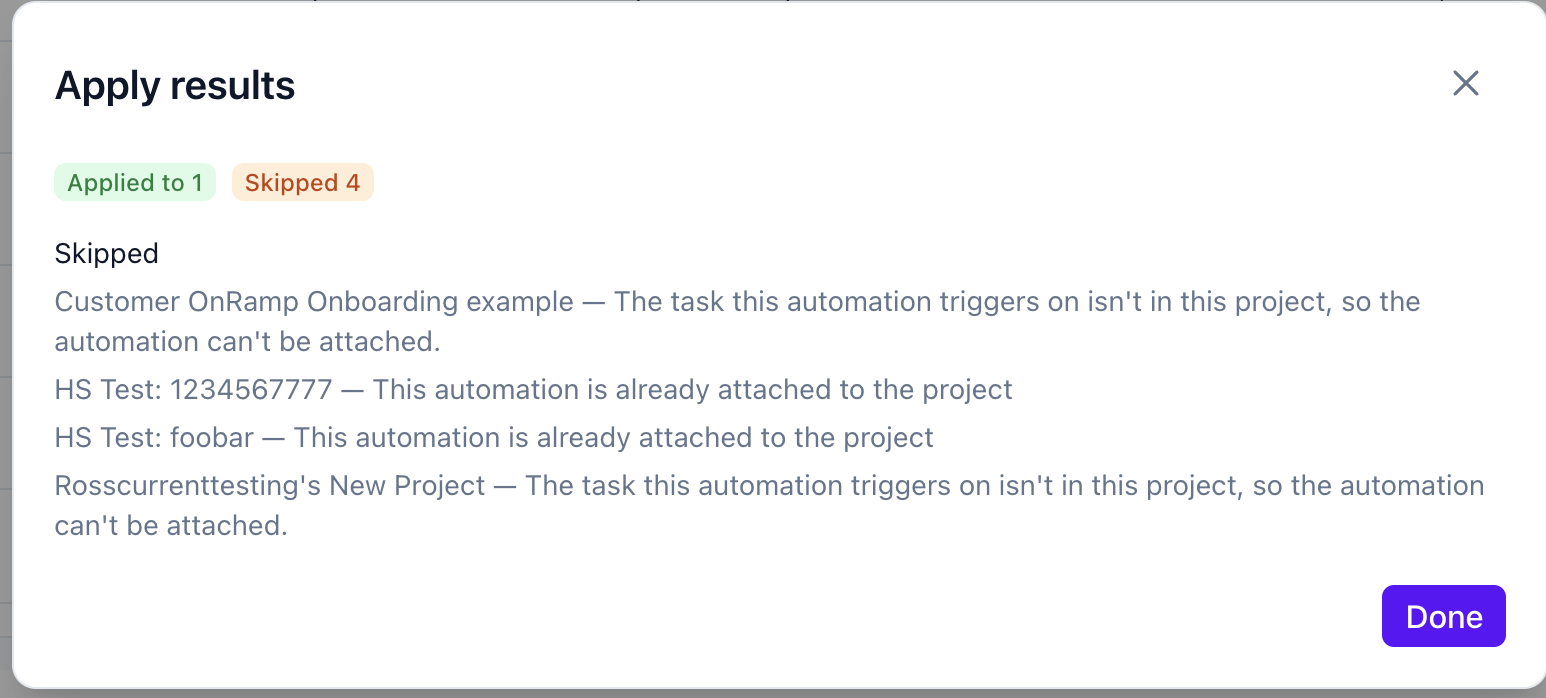
OnRamp shows an Apply results summary — how many it Applied to and how many were Skipped, with the reason for each skip (for example, "This automation is already attached to the playbook."). With one click the automation is now live across all of the selected destinations.
Import an automation into a playbook, project, or module
You can also pull an automation in from the other direction:
Open a playbook, project, or module for editing.
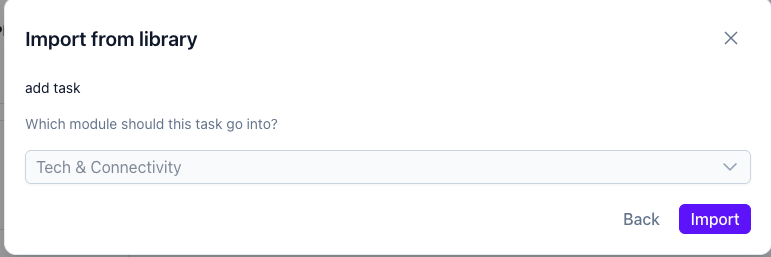
Choose Import from library.
Search for and select the automation.
Click Import — it's now attached to that item.
NOTE: If the triggering task or module is not currently in the playbook, project, or module you are adding the automation to you will be prompted that the automation will add the item.
Tips
Name automations descriptively. The Name and Trigger/Actions columns are how teammates find the right one, so avoid generic names.
Build once, apply broadly. Prefer creating a single library automation and applying it in bulk over rebuilding the same logic in each playbook.
Check "Used in". After applying, the Used in column reflects where an automation is attached — a quick way to confirm reuse and coverage.
Skipped isn't an error. In Apply results, Skipped usually means the automation is already attached to that destination — nothing went wrong.
Archive instead of delete. Retire automations you no longer need with the Active / Archived toggle so history is preserved.
The big idea
Build your automations in one place — the Automations Library — and propagate them across OnRamp wherever they're needed: playbooks, projects, and modules.