Control Task Visibility in OnRamp
Last updated: April 20, 2026
Not every task in a project should be visible to customers.
Some work is meant for your internal team only, while other tasks are designed for collaboration with the customer through the Customer Portal.
OnRamp allows you to control this using Task Visibility settings, giving you flexibility over what customers see and how much detail is shown.
Task Visibility Basics
Each task can be configured as either:
Customer Visible
The task appears in the Customer Portal and customers can interact with it.
Internal Task
The task is owned and managed by your internal team.
However, internal tasks can still be partially visible to customers depending on the Visibility setting.
Visibility Options for Internal Tasks
When a task is set as Internal, you’ll see a Visibility field that controls how the task appears in the Customer Portal.
There are two options:
Not on Portal
On Portal with Task details restricted
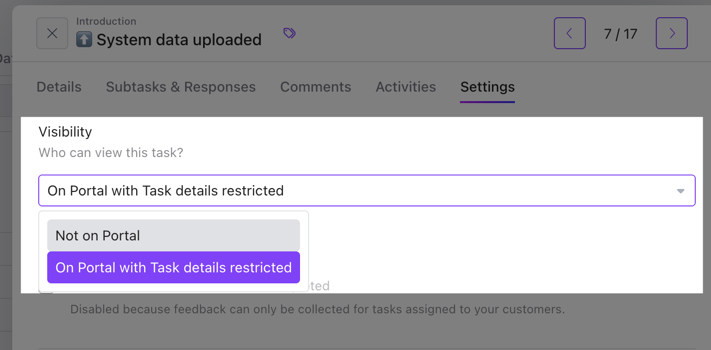
Not on Portal
The task is completely hidden from customers.
Customers will not see the task in the project at all.
Use this for:
Internal coordination
System setup steps
Internal approvals
Work customers don’t need visibility into
On Portal with Task details restricted
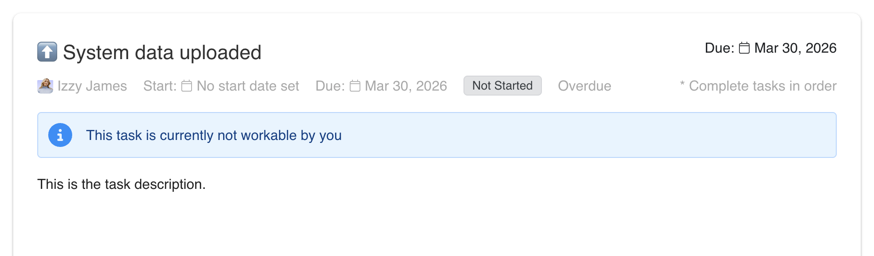
Below is an example of how an internal task appears to a customer:
The task title is displayed at the top
Key metadata (assignee, dates, status) appears beneath it
A banner may indicate whether the task is actionable by the customer
The full task description is visible
What Customers Can See
Customers have access to the following fields:
Task Name
Assignee
Start Date (or indication if none is set)
Due Date
Status (e.g., Not Started)
Overdue Indicator
Displayed when the due date has passed
Task Order Requirement
For example: “Complete tasks in order”
Full Task Description
Workability Banner
Example: “This task is currently not workable by you”
What Customers Cannot See
Subtasks
Even if the task contains subtasks internally, they are hidden from the customer view
Key Takeaway
The customer view is designed to provide clarity and transparency without overwhelming detail. Customers can track progress and understand expectations, while internal complexity remains hidden.
Why Use Restricted Visibility
This option is helpful when you want customers to see progress happening behind the scenes without revealing operational details.
For example:
Internal Task:
Configure Identity Provider Integration
With restricted visibility, the customer may see:
Configure Identity Provider Integration — In Progress
This reassures customers that work is happening while keeping the technical steps internal.
Sub-Tasks Respect Task Visibility
Sub-tasks inherit the visibility settings of their parent task.
This means:
If a task is internal-only and hidden, its sub-tasks are also hidden.
If a task uses restricted visibility, sub-task details remain hidden.
If a task is customer-visible, its sub-tasks appear in the Customer Portal.
Sub-task visibility cannot be configured independently.
Hiding the Task Description
On customer or internal tasks, regardless of visibility settings, you can restrict the task description so it's not seen by the customer. On the task details, toggle off the "Show on portal" option just above the task description.
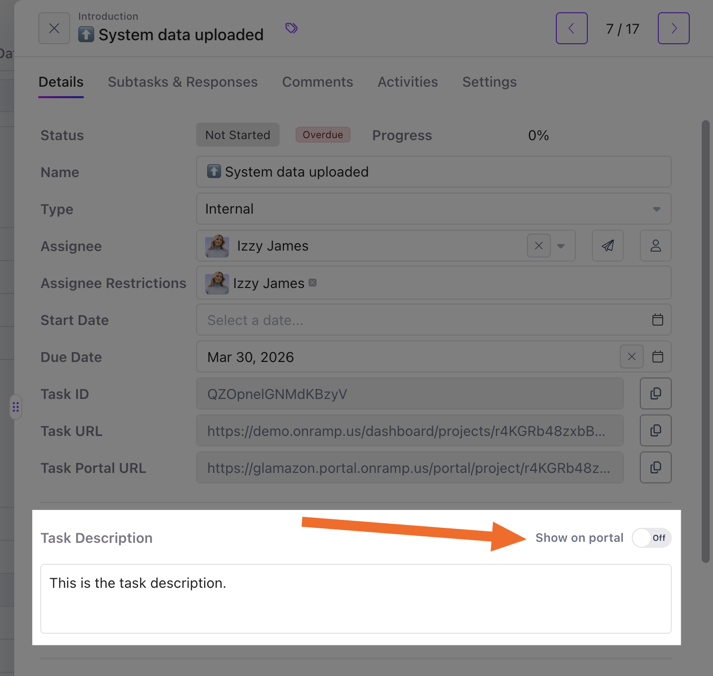
This is especially useful for internal “how-to” guidance or objection handling tied to customer-facing tasks.
You can include links, troubleshooting steps, and support instructions that only your team sees, making it much easier to guide how to help the customer behind the scenes.
Also great for training new CSMs, onboarding, and implementation team members.
Designing a Clean Customer Experience
Using visibility correctly helps keep the customer portal clear and focused.
Customers should see:
Tasks they need to complete
Milestones in the onboarding process
Progress updates
They do not need to see every internal operational step.
Visibility settings help strike that balance.
Best Practices
✔ Hide purely internal preparation work
✔ Use Restricted Visibility to show progress without exposing details
✔ Only expose tasks that require customer participation
✔ Keep customer-visible task instructions clear and actionable
A well-designed portal experience keeps customers informed without overwhelming them.