Project invitations for customer users
Updated
A project invitation is the email a customer user gets when you invite them to a project. It signs them in to the customer portal and takes them to that project. They don't need a password, a PIN or an account of their own.
When to use it
Read this to know what your customers go through after you invite them. It helps you answer questions like "Where do I start?" or "My link doesn't work."
How it works
If your organization doesn't use single sign-on (SSO) for the customer portal, customer users get into their project in three steps:
They select the button in the invitation email.
They select Go to your project on a confirmation page.
They land in the project.
The invitation email
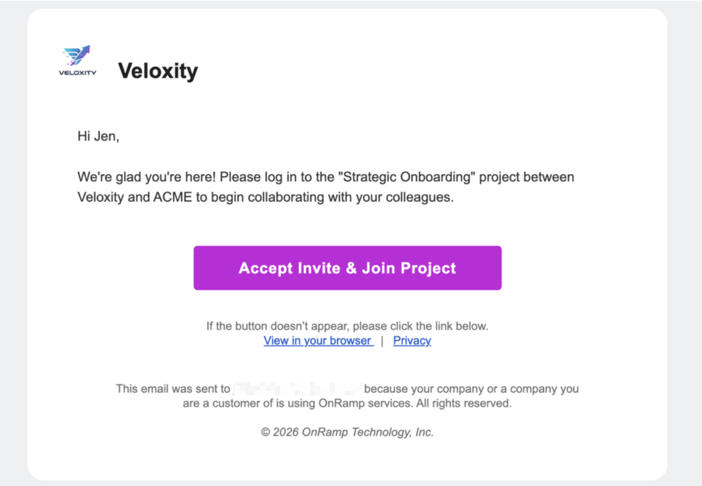
By default, the subject is <project name> Project Invitation. If your organization has customized the invitation email, its custom subject is used.
The email comes from your organization's name at notifications@onramp.us. If your organization sends from its own verified address, the email comes from that address.
The email shows:
Your company logo and company name.
A welcome message. If your organization has customized the invitation email, its own text replaces it.
The project name, in the default subject and message.
A button that reads Accept Invite & Join Project, or your custom button text if your organization has set one.
The confirmation page
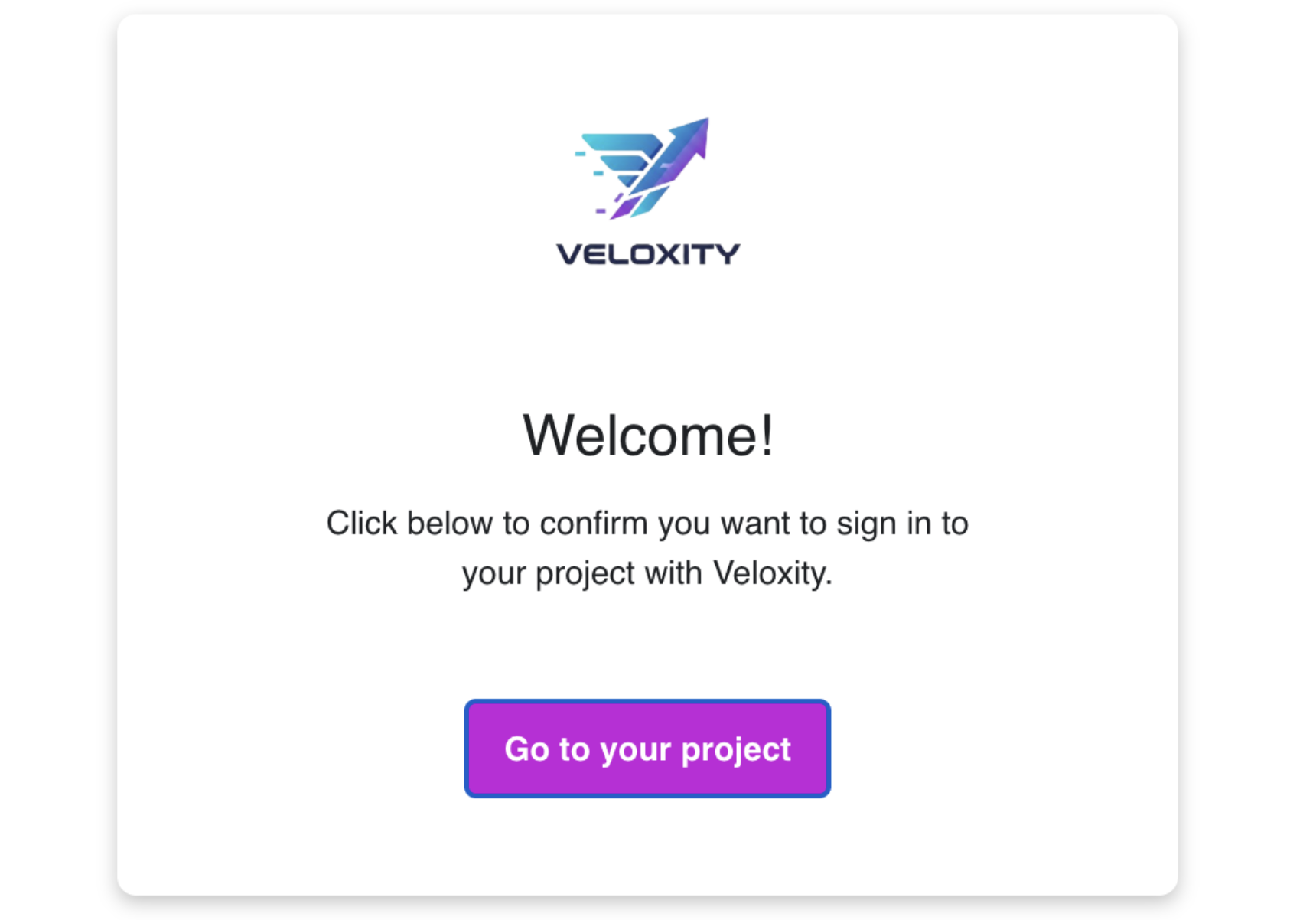
If your organization doesn't use SSO for the customer portal, selecting the button in the email opens a confirmation page in their browser. It shows your logo, or your company name if you haven't uploaded a logo. It also shows a Welcome! heading and a message asking them to confirm they want to sign in to their project with your company. They select Go to your project to continue.
Where they land
After confirming, they go straight to the project named in the invitation. They can start working on their tasks right away. If a sign-in link names no project, they go to the page they were trying to open, or to the portal home.
If your organization uses SSO for the customer portal, selecting the button in the invitation email sends them straight to your SSO sign-in page. They don't see the confirmation page. For more, see How customers authenticate and access the portal.
Limits
The link expires. The invitation link works for seven days. If they open an expired link, the page tries to email them a fresh one and shows We've sent you a fresh link! with their email address.
Some links can't be renewed. If a new link can't be sent, the page shows This invitation link is no longer valid and asks them to contact their project manager. This happens when they aren't an active customer user or have no active projects. You can resend a project invite.
Some customers won't get the email. It isn't sent if your organization has turned off this email or paused customer or project emails. It also isn't sent if the customer has opted out of notifications.
For the messages a customer may see when sign-in fails, see I can't log in to the customer portal.