Text notifications for customer users
Updated
Text notifications send short SMS updates about tasks to customer users who opt in from the customer portal. Your team chooses which playbooks, projects and kinds of text are included. Each customer user chooses whether to receive them.
This feature is available when it's turned on for your organization. If you don't see it, contact your OnRamp team.
When to use it
Use texts to reach customer users who rarely open email or the portal. Texts work well for new task assignments, reminders about tasks due the next day, nudges on stalled tasks, and quick answers sent by reply.
Texts go to customer users only. Your team's notifications stay in email and the app.
How it works
Customers opt in from the portal
Text updates are available when they're turned on for your organization. If you don't see them, contact your OnRamp team. Every customer user opts in for themselves.
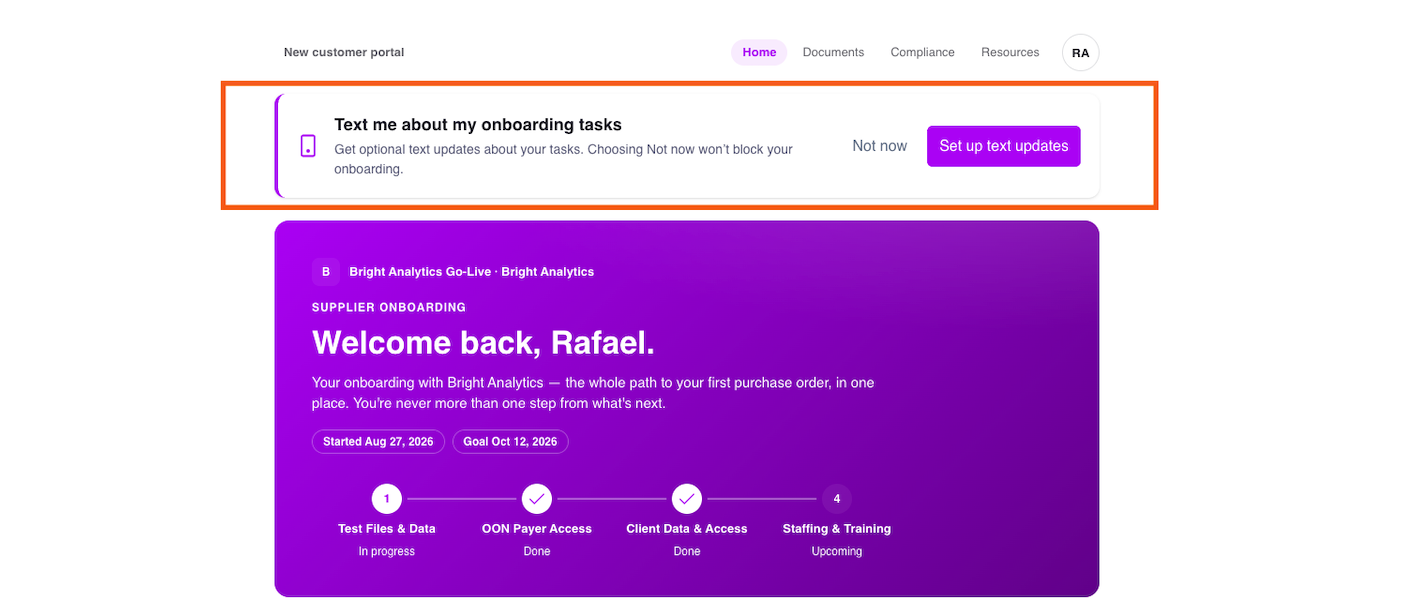
A text-updates prompt appears in the customer portal. They can dismiss it with Not now and set up later from Notification settings in the account menu. Aero in the portal can also offer a Set up text updates card.
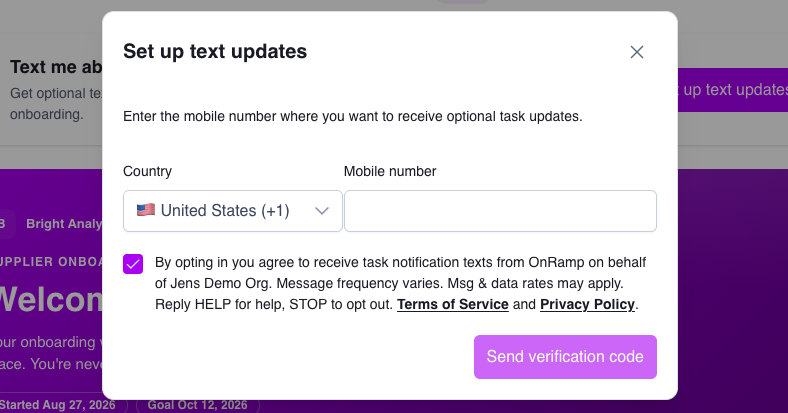
They choose a Country, enter a Mobile number, accept the Terms of Service and Privacy Policy, then select Send verification code. The step lists the countries texts are available for, and a number from another country shows an error. If no countries are available, the step shows a warning instead of the form.
They enter the 6-digit code sent to their phone. The code expires after 10 minutes. They can request a new code every 30 seconds, up to 3 sends. Once the code is accepted, they get a confirmation text.
They confirm the time zone used for text updates. This time zone sets their quiet hours and when the daily reminder arrives.
Once the time zone is confirmed, the setting shows On.
Customers manage text updates from Notification settings in the portal's account menu. Once text updates are on, a switch there lets them pause them. Change number appears while texting is available for their projects. Remove text updates turns them off. Replying STOP to any text opts them out. START opts them back in, and HELP returns help information.
Which texts customers get
Text | Sent when | Delivery |
|---|---|---|
Task assigned | Someone assigns one task to a customer user. An automation can also assign tasks. | Right away when a person assigns it. Automated assignments are queued. |
Several tasks assigned | Two or more tasks in one project are assigned to the same person at once. They get one summary text. | Queued |
Due soon | A task is due the next day and is not started, in progress or blocked. It counts tasks assigned to them and unassigned tasks whose assignee restriction includes them. It also counts customer-facing tasks with no assignee and no assignee restriction. Internal tasks count only when the customer is assigned a step in them. The project must be published, not completed or archived, and have texting on. | 10:00 a.m. in their time zone. One text per person per day, across all their projects. |
Task needs input | Someone answers a step, and a step now waits on the customer where none was waiting before. The text goes to the task's assigned customer user, whoever gave the answer. | Right away. |
Task nudged | Someone on your team sends a nudge and selects Also send SMS. The dialog shows Potential SMS recipients before you send. | Right away for one task and one recipient. Larger nudges are queued. |
Replying by text
When Customers can reply by text is on, Task assigned, Task nudged and Task needs input texts can ask the customer to reply. A Task needs input text includes a reply prompt when the question can be answered by text. Replies work for 24 hours after the text is sent.
After a reply, the customer gets a text saying the reply was saved, or that it couldn't be saved, or that the task needs the portal. When Customers can reply by text is off, new texts send a link only.
Four settings decide whether a text is sent
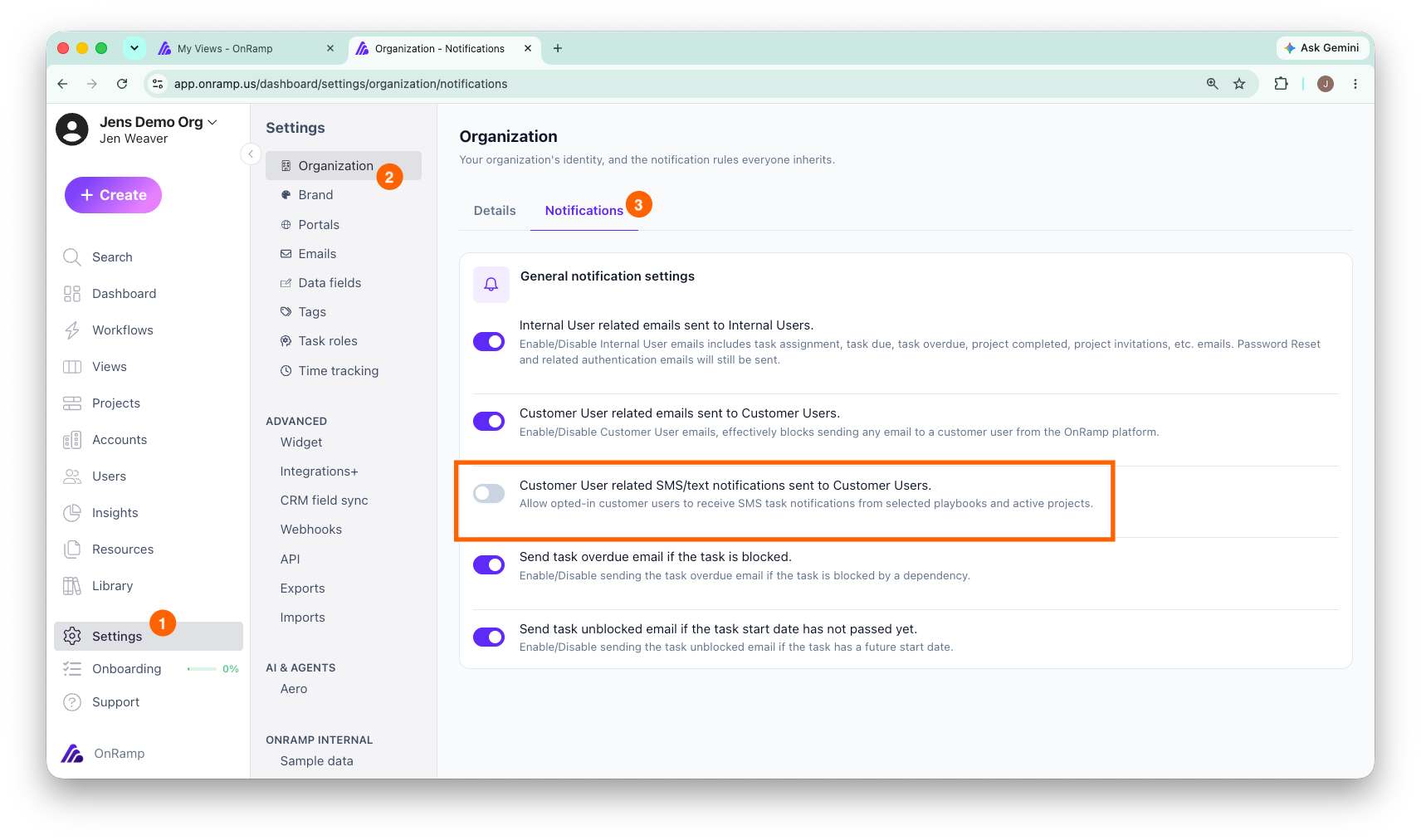
Organization. A Super Admin opens the Notifications tab of the organization settings page. That page is called General in the grouped settings menu and Organization otherwise. They turn on Customer User related SMS/text notifications sent to Customer Users., pick the playbooks and active projects to include, then select Enable SMS/Texting. The setting also shows which countries' mobile numbers texts reach.
Text type. The SMS texts page turns each task text on or off for the whole organization. In the grouped settings menu, when other email pages show too, it's under Settings > Email & SMS > Text messages. Otherwise it's listed as SMS texts in Settings. Turning a text off also stops texts already waiting to go out. Each row has a preview of the message. Phone verification and Text opt-in are account texts that are always sent.
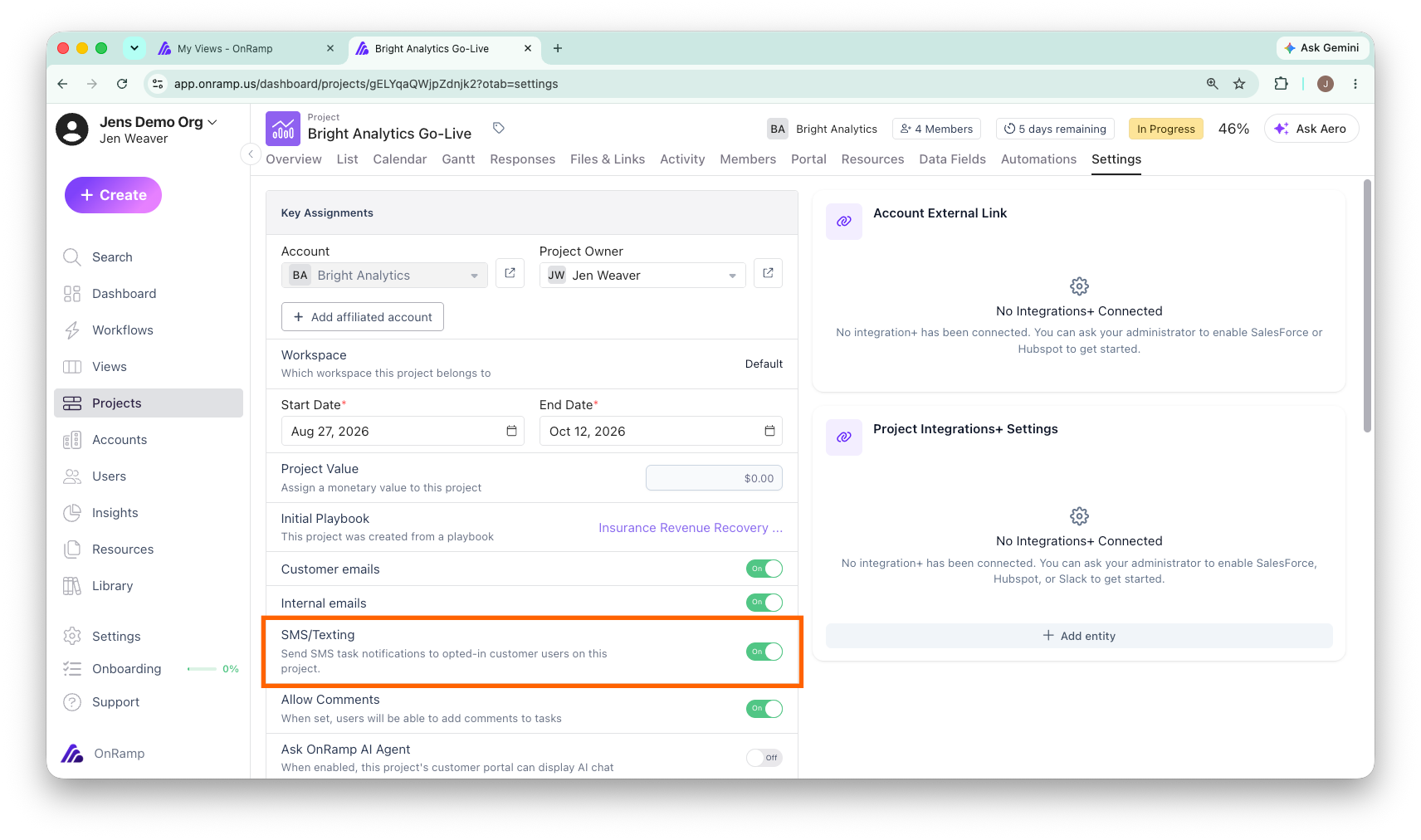
Playbook and project. Each playbook and each project has an SMS/Texting toggle in its settings. The project's toggle decides whether it sends texts. A new project copies its playbook's setting.
Customer. The person has opted in and hasn't paused or stopped text updates.
Who can change each setting
Setting | Who can change it |
|---|---|
Turn on texting for the organization and choose its playbooks and projects | Super Admins |
Turn text types and replies on or off on SMS texts | Super Admins, Creators and Integrators |
A playbook's SMS/Texting toggle | Super Admins and Creators |
A project's SMS/Texting toggle | Anyone who can edit the project's settings |
To check whether a customer user has opted in, open their user detail. It shows their opt-in status with a masked number.
Limits
Quiet hours. No task texts go out from 9:00 p.m. to 8:00 a.m. in the recipient's time zone. A task text created overnight is held until 8:00 a.m. Verification codes and the opt-in confirmation are sent right away, even overnight.
Daily limits. Each person gets up to 10 texts and $1.00 of sending cost per day, in their time zone. Every task text, nudges included, counts toward that limit. Verification codes and the opt-in confirmation don't count. A text over the limit is skipped, not delayed.
Retention. Text content is kept for 30 days.