Self-serve playbooks
Updated
A self-serve playbook lets customer users start their own project from the customer portal. You choose which accounts can start it, who owns the projects it creates, and what customers read about it.
When to use it
Use a self-serve playbook for work customers should be able to kick off themselves. You set it up once, and nobody on your team has to create each project. A universal request can be open to every account. A tier- or region-specific program can be limited to the accounts that match a rule.
How it works
Everything about self-service lives on the playbook. Go to Library > Playbooks, open the playbook, choose the Portal tab, and select Settings in the top right. That opens a slideout.
When Portal Studio is turned on for your organization, and you can update the playbook's portal settings and view portals, the slideout opens with a Portal Settings block, and Self-Service Settings is the second block. Otherwise Self-Service Settings is the first block.
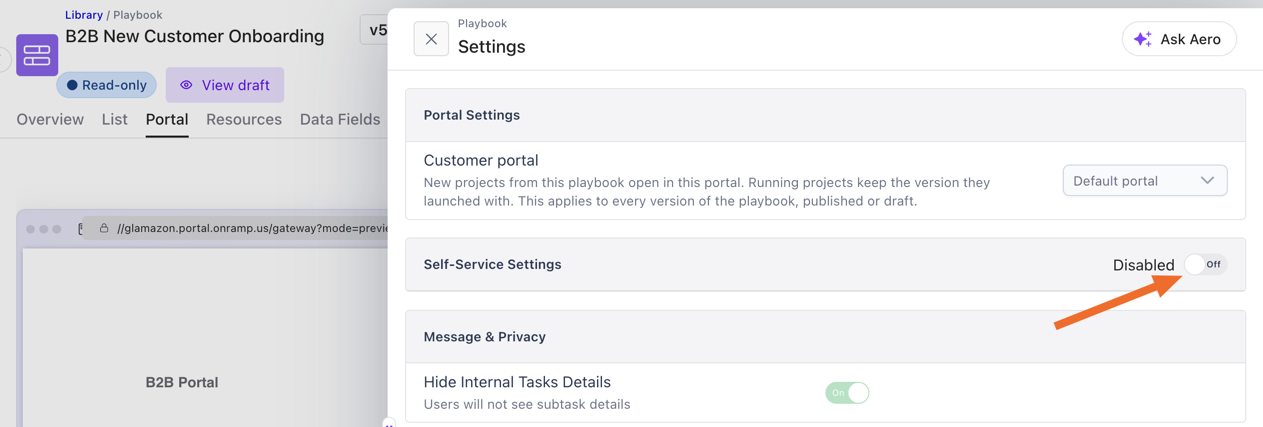
The toggle in the Self-Service Settings header turns self-service on. The rest of the form appears only once it's on.
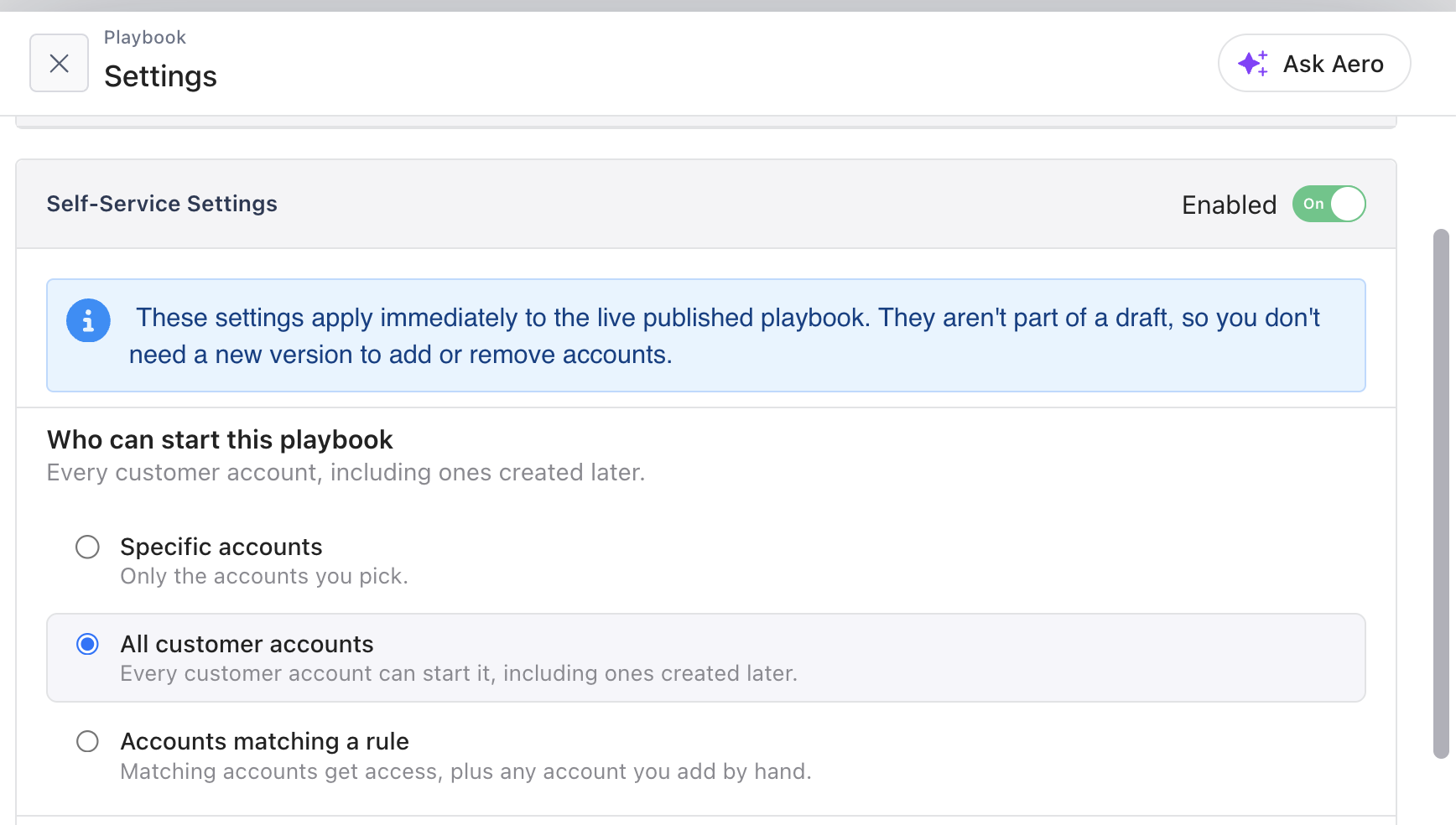
The access options decide which accounts can start the playbook. They're covered in who can start it.
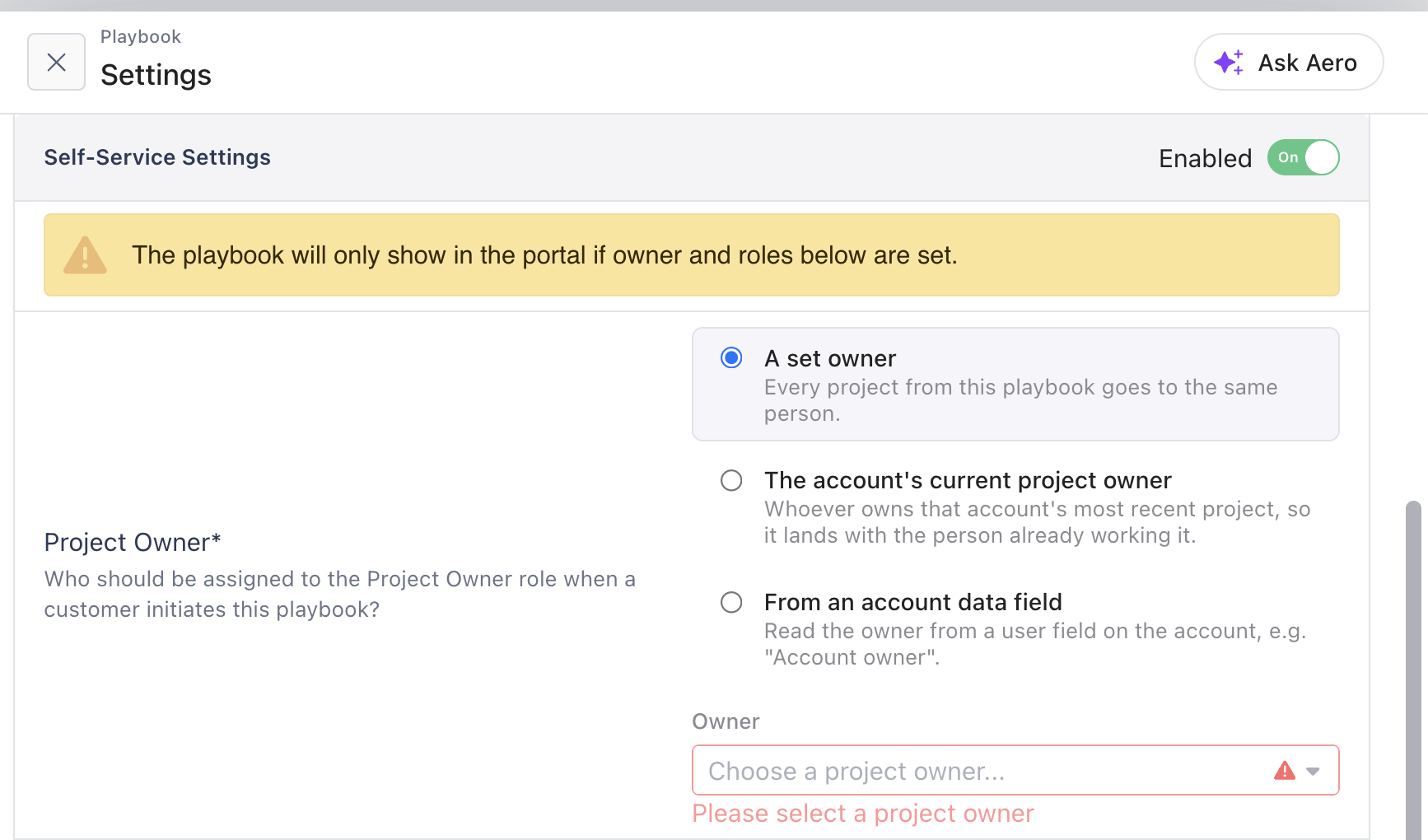
Project Owner and Default Org Task Assignees are both required. Until they're set, the panel warns: "The playbook will only show in the portal if owner and roles below are set."
Customer Facing Name, Customer Facing Description and Portal cover image set what customers read about the playbook.
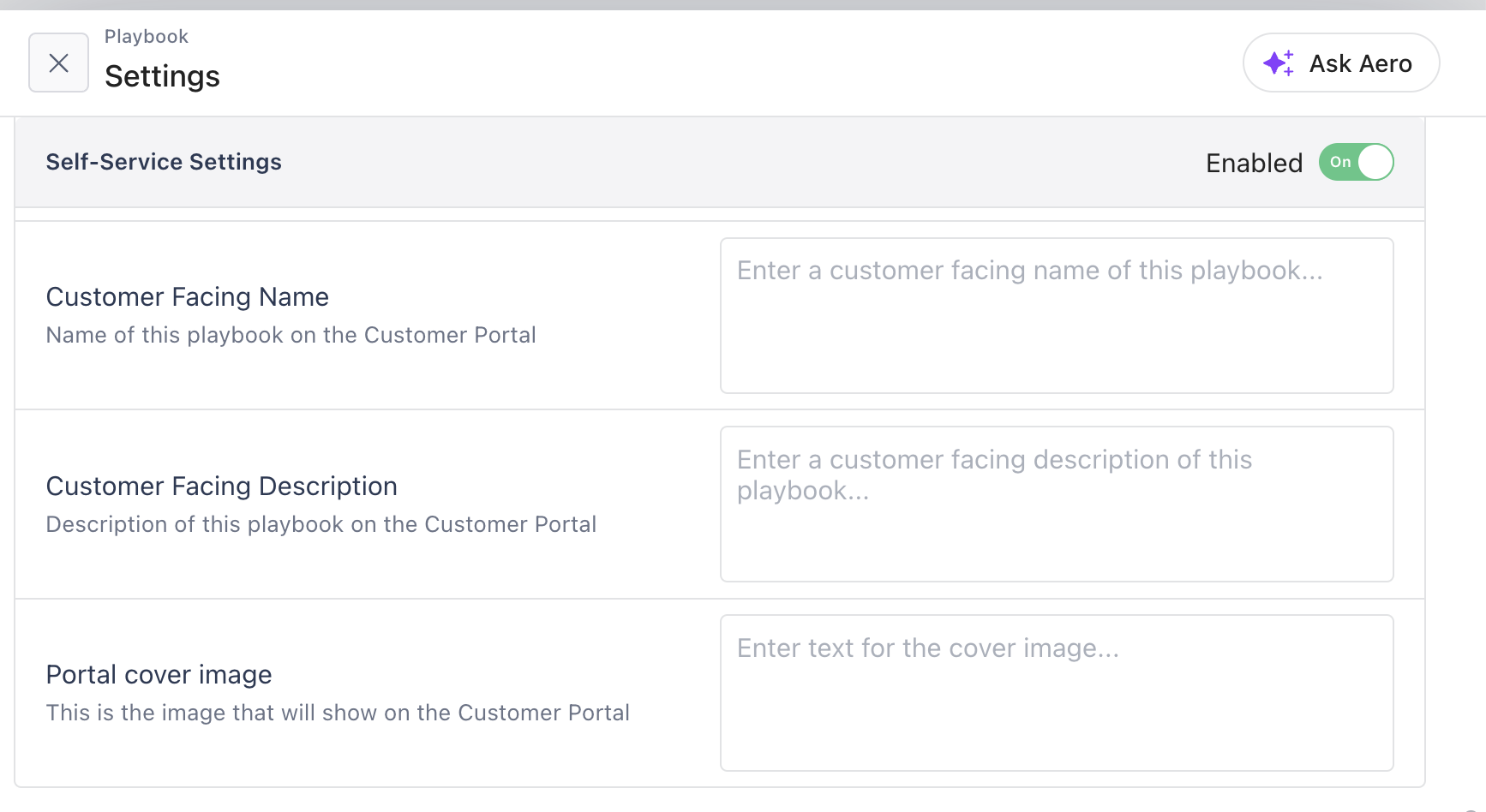
Most fields save as soon as you change them. There are two exceptions, because both change who can see the playbook: the account list has its own Save accounts button, and a rule has Save & sync. Changes to the owner, assignees, name, description and cover image save only while the project owner and every task role assignee are filled in. Set those first.
The same slideout also has Message & Privacy and Shared Files blocks. Customizing the customer portal covers those.
Versions and drafts
Self-service settings apply right away to the live published playbook. They aren't part of a draft. The customer portal assignment is shared across every version, and projects already running keep the version they launched with.
Who can start it
You have three access options. The summary line under the heading always describes what's live, not what's selected but unsaved.
Option | Who gets access |
|---|---|
Specific accounts | Only the accounts you pick. |
All customer accounts | Every customer account, including ones created later. |
Accounts matching a rule | Every account that matches your conditions, plus any account you add by hand. |
Specific accounts
Your changes are staged. A summary such as "+3, −1 accounts" appears with Save accounts and Cancel. After you save, you can select Undo.
If a save removes more than 10 accounts or more than half the list, you're asked to confirm with Remove and save. If you switch to All customer accounts and the save removes picked accounts, you're always asked to confirm, however few are removed. Archived or otherwise unavailable accounts stay assigned and are counted, but aren't shown.
With no rule set, an empty account list means every customer account, not none. Under a rule it's the opposite: no matches and no hand-added accounts means nobody has access.
Accounts matching a rule
Super Admins and Creators can set a rule. Each condition is a field, an operator and a value. Choose whether an account must match All conditions or Any condition. You can add up to 20 conditions.
Field | Operators |
|---|---|
Account name | contains, doesn't contain, is exactly, starts with, ends with, is empty, is not empty |
Created | today, this week, last week, this month, last month |
Tags | has any of, has all of, has none of |
Dropdown data fields | is, is not, is empty, is not empty |
Multi-select data fields | includes |
Number and monetary data fields | equals, doesn't equal, is more than, is at least, is less than, is at most |
Text data fields | contains, doesn't contain, is exactly, starts with, ends with, is empty, is not empty |
Only customer account data fields are offered. Date data fields aren't, so use Created for dates. User-type data fields are matched as text.
Every condition needs a value except is empty, is not empty and the relative dates. You can't save until every condition is complete.
As you edit, the panel previews the change: +N gain access and −N lose access. If the playbook is open to every account today, it warns you that saving a rule narrows access. Save & sync applies the full change at once, including removals.
Accounts under Added by hand keep access whether or not the rule matches them.
How a rule stays current
When | What happens |
|---|---|
Nightly | Every rule is re-run across your accounts. |
A new account is created | It's checked against each rule and added where it matches. This only adds. |
An account import finishes | Rules are re-run. |
Sync now | Re-runs the saved rule. It's unavailable while you have unsaved edits. |
Held removals
When any sync except Save & sync would remove more than 25 accounts, or more than half the accounts that have access only through the rule, it holds those removals. This includes Sync now. Additions still apply. The panel shows "N accounts no longer match and were held for safety." with Apply removals. Only Save & sync and Apply removals apply every removal. Check the rule first. If the accounts should lose access, select Apply removals. If the rule is wrong, fix it and save.
Leaving rule mode
Switching away from Accounts matching a rule removes the rule:
Some accounts are added by hand: Access becomes only those accounts. The button reads Remove rule.
None added by hand, switching to All customer accounts: The playbook opens to every account. The button reads Open to every account.
None added by hand, switching to Specific accounts: The confirmation is titled Pick the accounts that keep access first, with Try anyway. The switch is refused, so add the accounts that keep access first.
Who owns the project
Choose how the project owner is picked:
A set owner: the same person every time.
The account's current project owner
From an account data field: only user-type account data fields are offered.
A person is always required. With A set owner, that field is labelled Owner, and that person is the owner. With the other two options, it's labelled Fallback owner. The fallback owner is used when the source is empty, or the person has left, was deactivated, or is a customer user. If the selected data field is deleted, starts use the fallback owner and the panel flags it.
Default Org Task Assignees sets who gets the internal tasks. For how roles resolve, see setting up task roles.
What customers see
What | Where you set it |
|---|---|
Title | Customer Facing Name on the playbook |
Description | Customer Facing Description on the playbook |
Image | Portal cover image on the playbook |
Section heading and intro | Settings > Portals > Self-Service Section Title and Self-Service Section Description |
In Portal Studio, the Start a project widget has Title, Intro and Empty message. You can use one per page. If you leave the empty message blank, the section hides itself when there's nothing to start.
When a customer starts one
A project is created, named after the Customer Facing Name, or the playbook's project name if that's blank.
It's attached to the customer's account, and its start date is today.
The owner and internal role assignees are applied.
The customer is added and gets every unassigned customer task.
No invite emails go to internal users or customer users.
The project is flagged as started from the portal. Project exports show this in an Initiated via customer portal column.
The account's view
An account's Self-Serve tab lists the self-serve playbooks it can start. For each one it shows:
How the account has access: Assigned, Via rule or All accounts.
How many projects it has generated, and how many are in progress or completed.
A list of those projects with status, start date and customer users.
Add to playbook assigns the account to another self-serve playbook. Playbooks open to all accounts are never offered there.
Turning it off
Turn off the toggle in the Self-Service Settings header. A confirmation titled Disable self-service? opens. If accounts are assigned by hand, it counts the assigned accounts that will lose access and says assignments are kept. Otherwise it says customers will no longer see the playbook in the portal. Select Disable, or select Keep enabled to cancel.
Who can do what
Super Admins and Creators who can update a playbook's portal settings can turn self-service on and off. Super Admins and Creators can set a rule. They can also choose the Customer portal under Portal Settings, which shows only when Portal Studio is turned on for your organization.
Limits
The access options appear only after self-service is on, and they're locked on archived playbooks.
If customer accounts fail to load, the panel shows "Customer accounts could not be loaded" and account assignments are locked.
Archived and unavailable accounts stay assigned and counted, but aren't shown in the list.