Task visibility in the customer portal
Updated
Task visibility decides whether a task appears in the customer portal and how much of it customers see. You control it with each task's Visibility setting, together with the project's Hide Internal Tasks Details portal setting.
When to use it
Not every task in a project needs to reach your customers. Use visibility to:
Keep internal coordination, system setup and internal approvals out of the customer portal.
Show customers that internal work is moving, without showing how it's done.
Keep internal guidance in a task's description while the task itself stays on the portal.
For example, an internal task called Configure Identity Provider Integration can show customers only its name and status, such as In Progress. They know the work is happening, and the technical steps stay internal.
How it works
Task type
Every task has a Type: Internal or Customer. The type decides which visibility options the task offers.
The Visibility setting
To change who can see a task, open the task in the project and go to its settings. The Visibility field asks Who can view this task? You can also change it from the Visibility cell in the project's task table. Contributors don't see the Visibility field. You can't change the field when the task is complete or archived, when the project is archived, or when you don't have permission to edit the task.
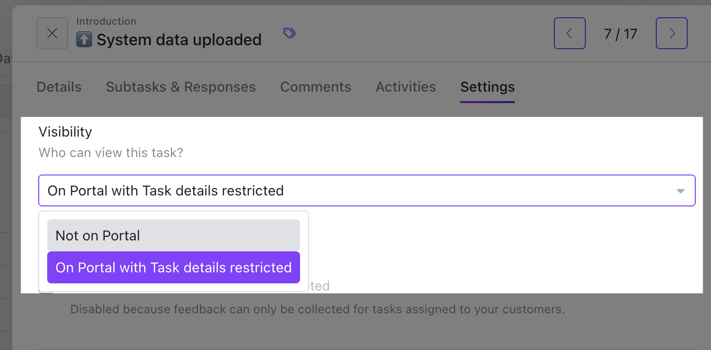
The options depend on the task's type and on the project's Hide Internal Tasks Details portal setting:
Task type | Hide Internal Tasks Details | Options |
|---|---|---|
Internal | On | Not on Portal, On Portal with Task details restricted |
Internal | Off | Not on Portal, All project members |
Customer | On or off | All project members only |
To turn Hide Internal Tasks Details on or off, see Using the Portal tab. Playbooks have the same setting in their portal settings.
Not on Portal
The task is hidden from customers. The exception is a customer assigned to one of the task's subtasks: they still see the task in the project and can open it. The task also has no portal URL. Its details read This task is not visible on the portal and has no direct URL.
On Portal with Task details restricted
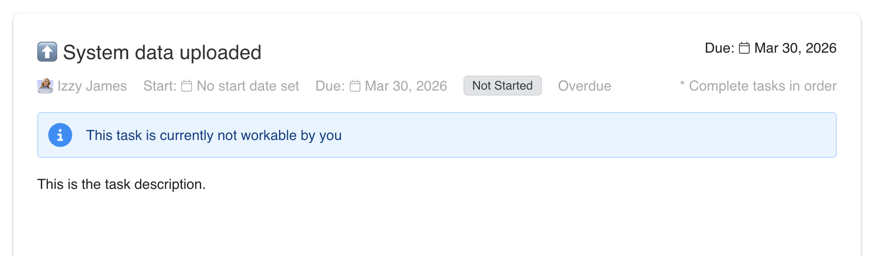
Customers see the task, but not its description or its subtasks. They see:
The task name
The assignee
The due date, and the start date when the project's portal is set to show start dates
The status, such as Not Started or In Progress
An Overdue label when the due date has passed
A task order note, such as
* Complete tasks in orderA banner such as
This task is currently not workable by you, when the customer can't work on the task
All project members
The task appears in the customer portal in full.
Subtasks follow their task
Subtasks follow the visibility of the task they belong to. They're hidden when the task is Not on Portal. When the task's details are restricted, they're hidden from every customer, including a customer assigned to a subtask. They show when the task is shown in full. The one exception: a customer assigned to a subtask on a Not on Portal task still sees that task. They also see its subtasks, unless Hide Internal Tasks Details is on for the project.
Hide a task's description
You can hide a task's description from customers while the task stays on the portal. In the task's details, turn off the Show on portal toggle beside the Task Description heading.
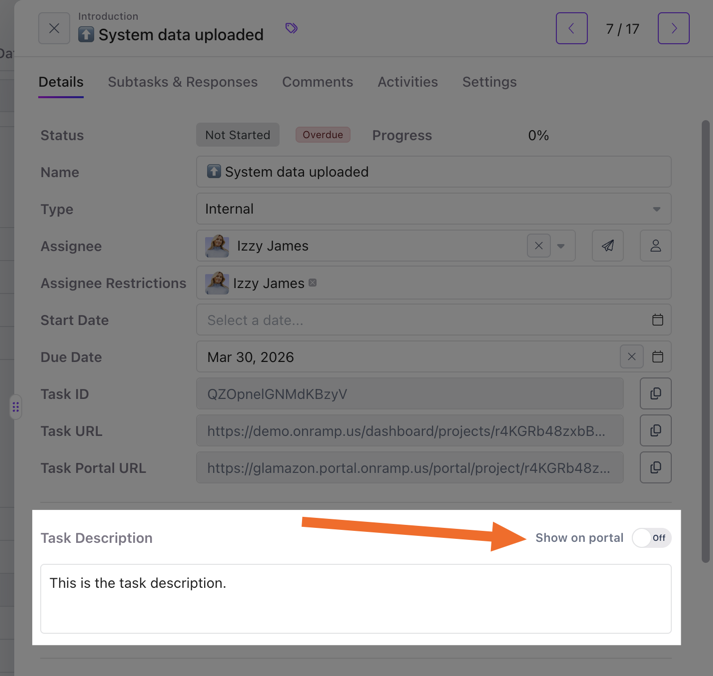
This works well for internal how-to guidance tied to a customer task. You can add links, troubleshooting steps and support instructions that only your team sees.
Limits
You can't set a subtask's visibility on its own.
Customer tasks can't be set to Not on Portal.
On Portal with Task details restricted only appears for internal tasks when Hide Internal Tasks Details is on.
The Show on portal toggle doesn't appear when a task is set to Not on Portal.
Contributors without permission to edit the task can't change the Show on portal toggle.
Automations can also change a task's visibility. See Playbook and project automations.