Self-Serve Playbooks
Last updated: September 24, 2026
Self-Serve Playbooks
A self-serve playbook lets your customers start their own onboarding project from the portal — no email, no ticket, no one on your team clicking Create. You decide which playbooks are on offer, which accounts can see them, who ends up owning the project, and how it is presented.
How it works
Three things have to line up before a playbook appears in a customer’s portal.
The playbook — published and switched on. The playbook is published, active, not archived, and has self-service enabled with an owner and all internal task assignees filled in.
The audience — the account is allowed. Access is granted per customer account: every account, a list you pick, or the accounts that match a rule you write.
The person — a customer user on that account. Anyone signed in to the portal on an allowed account sees the playbook and can start it.
Everything about self-service lives on the playbook itself, in Library → Playbooks → your playbook → Portal tab → Settings. The account side — what a given customer can start and what they have started — lives on the account’s Self-Serve tab.
Turn one on
These steps are in order: the form only appears after the toggle, and the playbook only reaches the portal once the required fields are filled.
Open the playbook’s portal settings. Go to Library → Playbooks, open the playbook, choose the Portal tab, and click Settings in the top right. The Self-Service Settings panel is the second block in the slideout.
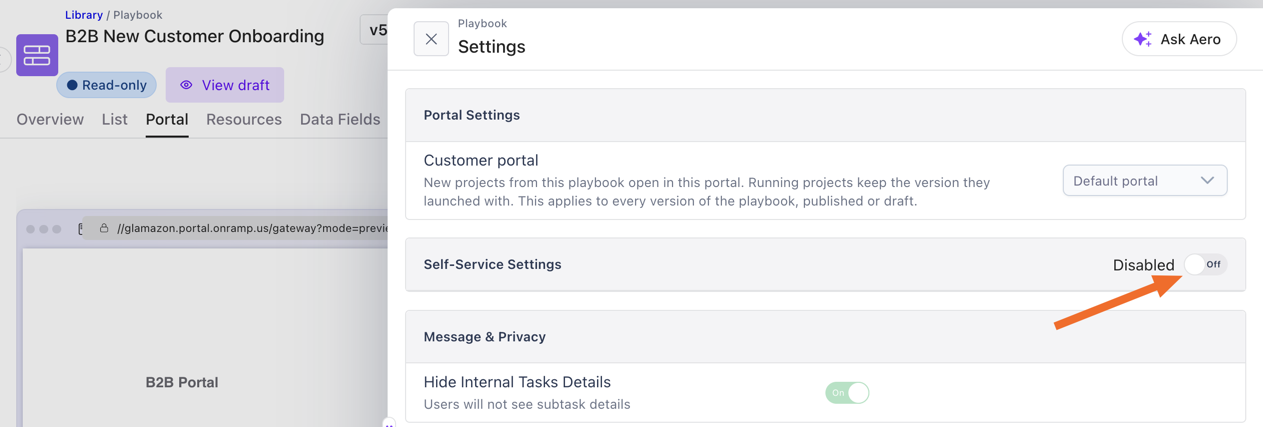
Flip the toggle. Turn the toggle in the panel header on. The rest of the form appears underneath. Nothing is visible to customers yet — the playbook still needs an owner and role assignees.
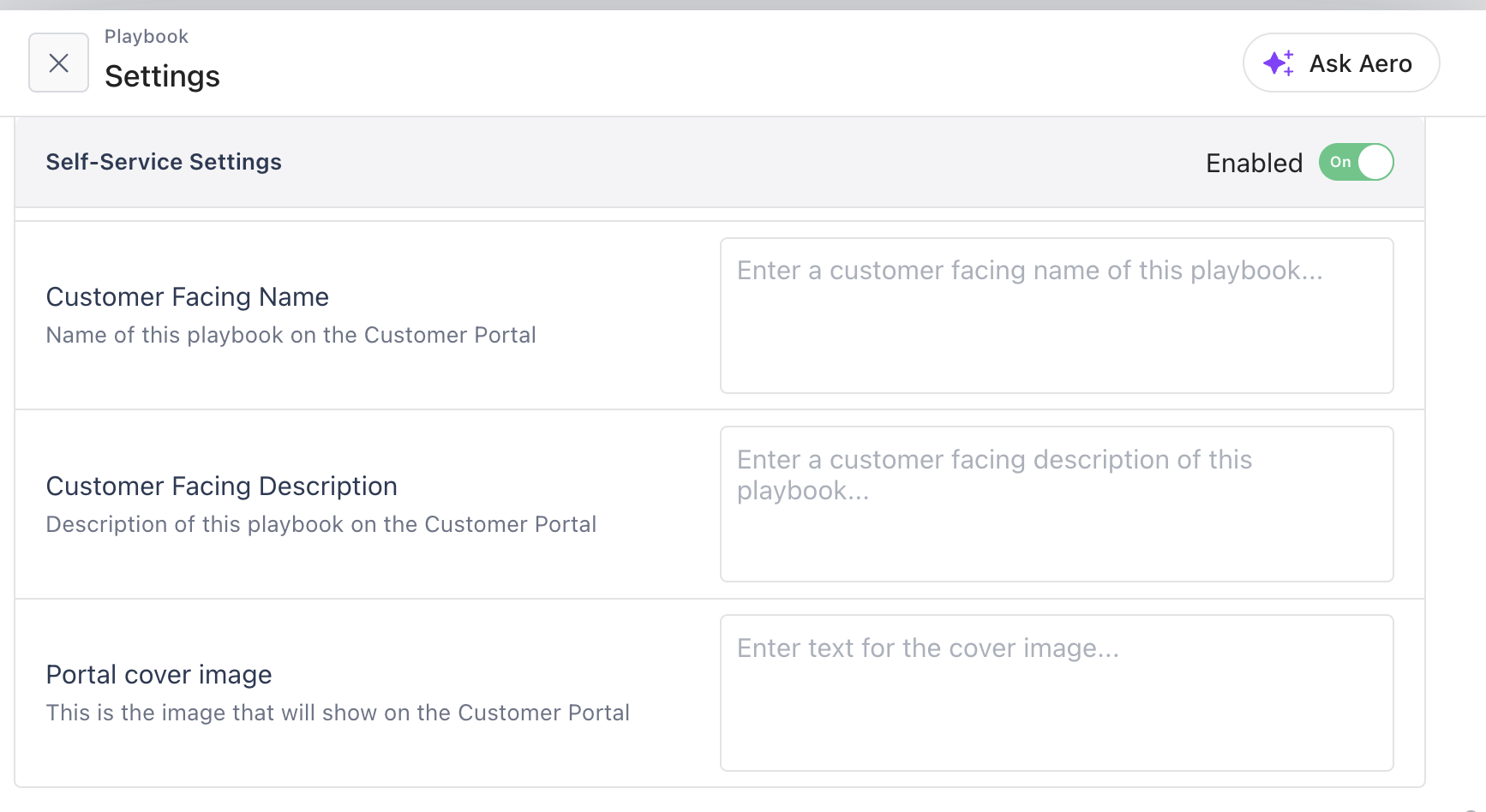
Choose who can start it. Under Who can start this playbook, pick an access option and save it. This is the one setting with real blast radius, so it is covered in full in Who can start it below.
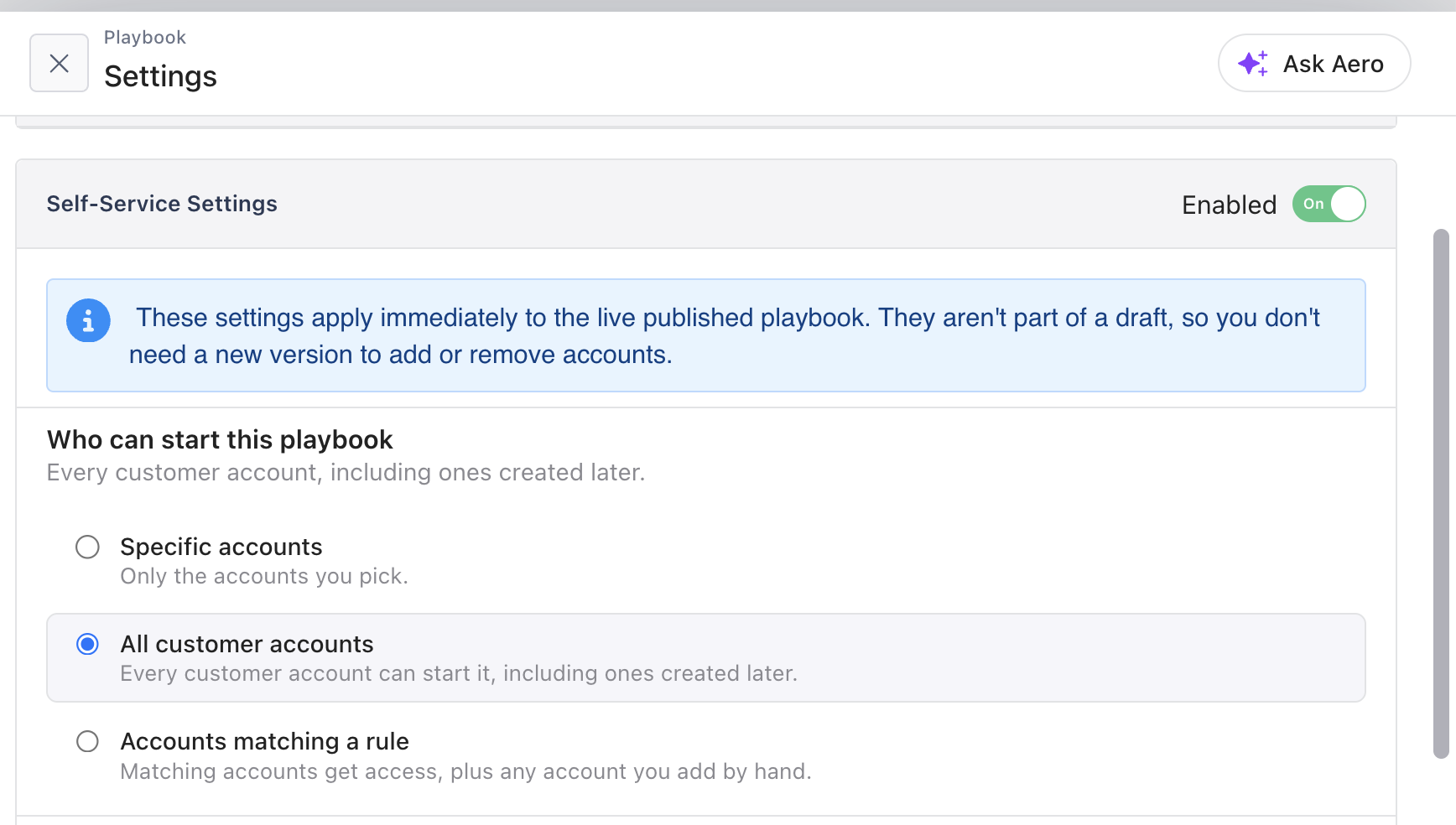
Set the project owner and internal assignees. Project Owner and Default Org Task Assignees are both required. A playbook missing either stays out of the portal, and the panel warns you: “The playbook will only show in the portal if owner and roles below are set.”
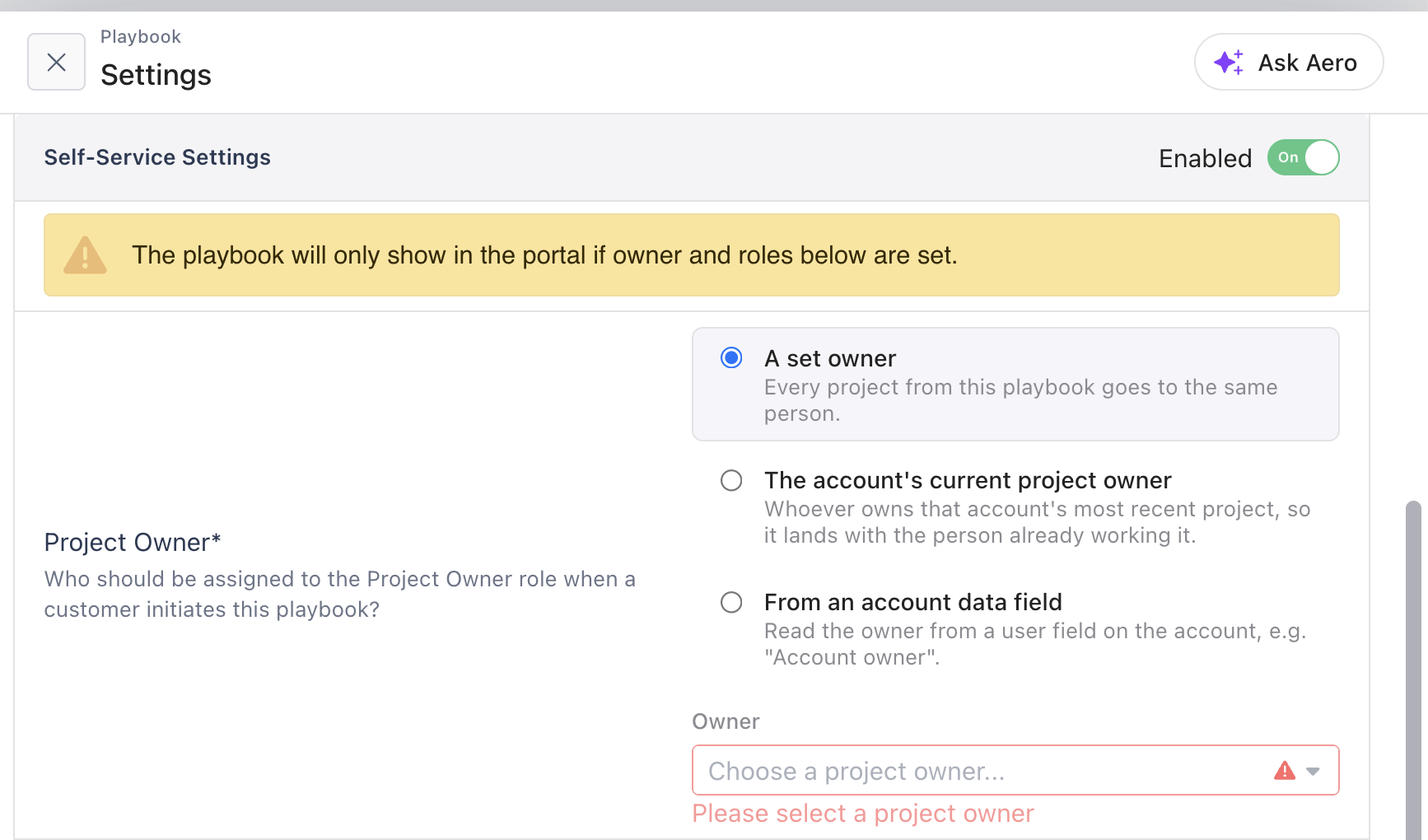
Write the customer-facing copy. Fill in Customer Facing Name, Customer Facing Description, and optionally a Portal cover image. These are what the customer reads on the card — your internal playbook name never reaches them if you set a customer-facing one.
Saving. Most fields save when you move off them. The two exceptions are deliberate: the account list has its own Save accounts button, and a rule has Save & sync. Both change who can see the playbook, so neither commits until you say so.
Who can start it
Three options, shown as a set of choices in the access panel. The line under the heading always describes what is live right now, not what you have selected but not yet saved.
Option | Who gets access | Best for
|
|---|---|---|
Specific accounts | Only the accounts you pick, one by one. | A small, stable list you are happy to maintain by hand. |
All customer accounts | Every customer account in your organization, including ones created later. | Something universal — a QBR kickoff, a support request flow. |
Accounts matching a rule | Every account matching your conditions, plus any account you add by hand. | Audiences defined by data you already keep — tags, tier, region, plan. |
Adding and removing specific accounts
Use the picker to add accounts, or the × on a pill to remove one. Your changes are staged — a summary such as “+3, −1 accounts” appears with Save accounts and Cancel. After a save you get a one-click Undo.
If a save removes a large share of the list, you are asked to confirm first. Accounts that are archived or otherwise unavailable stay assigned and are counted but not shown.
The empty-list trap. With no rule set, an empty account list means every customer account, not none. This is why removing the last account asks you to confirm, and why choosing “All customer accounts” is an explicit option rather than something you reach by clearing the list. Under a rule the empty case is the opposite: no matches and no manual additions means nobody.
Matching by rule
Instead of maintaining a list, describe the audience once and let OnRamp keep it current — new accounts that match are picked up automatically, and accounts that stop matching lose access.
Availability. Audience rules are enabled per organization. If you do not see Accounts matching a rule as an option, it is not switched on for your org yet — talk to your OnRamp contact.
Building the conditions
Each condition is a field, an operator, and a value. Choose whether an account must match all conditions or any condition. You can use up to 20 conditions.
Field | Operators
|
|---|---|
Account name | contains, doesn’t contain, is exactly, starts with, ends with, is empty, is not empty |
Created | today, this week, last week, this month, last month |
Tags | has any of, has all of, has none of |
Dropdown data fields | is, is not, is empty, is not empty |
Multi-select data fields | includes |
Number and monetary data fields | equals, doesn’t equal, is more than, is at least, is less than, is at most |
Text data fields | contains, doesn’t contain, is exactly, starts with, ends with, is empty, is not empty |
Only customer account data fields appear in the picker. Date data fields are not offered — use the account’s own Created field instead. User-type data fields are matched as raw text, so they are not practical here; use one to drive project ownership instead.
Every condition needs a value before you can save, except the ones that carry their own meaning (is empty, is not empty, and the relative dates). A half-finished condition would quietly widen who matches, so the save button stays off until it is complete.
Check the impact before you save
As you type, the panel shows how many accounts the rule would match and what saving would change:
+N gain access — accounts that would newly be able to start the playbook.
−N lose access — accounts that have access today and would not after saving.
A plain warning when the playbook is currently open to every account — saving any rule narrows it, and the panel says how many accounts that costs.
Then press Save & sync. Saving applies the full change immediately, including removals — it is a deliberate act, so nothing is held back.
Accounts you add by hand
Under a rule, the accounts you pick in Added by hand sit alongside the matches: they keep access whether or not the rule matches them, and re-running the rule never drops them. Use it for the exception you do not want to bend the rule around.
How the list stays current
Trigger | What it does
|
|---|---|
Nightly | Every rule is re-evaluated across all your accounts. Adds and removals both apply. |
A new account is created | Checked against every rule straight away, and added where it matches. Add-only. |
An account import finishes | Rules are re-run once for the whole batch. |
Sync now | Re-runs the saved rule on demand. Unavailable while you have unsaved edits — it would run the old conditions. |
The footer shows when the rule last synced. Note that a single new account matching a rule does not move that timestamp — only a full re-evaluation does.
Held removals
If an unattended sync would strip access from more than 25 accounts, or from more than half of the accounts that only had it through the rule, it holds those removals back and applies the additions anyway. This is the safety net for a deleted tag or a renamed data field.
You will see “N accounts held for safety” in the panel, with an Apply removals button. Check that the rule is right first — if the accounts genuinely should lose access, apply; if the rule broke, fix the rule and save it.
Leaving rule mode. Switching away from Accounts matching a rule removes the rule, and every account that only had access through it loses that access straight away. The confirmation tells you how many.
If nothing is added by hand, the only place you can go is All customer accounts, and that opens the playbook to your whole customer base. Switching to specific accounts with an empty list is refused — add the accounts that should keep access first.
Who owns the project
A customer-started project still needs someone on your team on it. Choose how that person is picked.
A set owner — every project from this playbook goes to the same person.
The account’s current project owner — whoever owns that account’s most recent project, so it lands with the person already working it.
From an account data field — read the owner from a user-type field on the account, such as “Account owner”.
The Fallback owner is always required, in every option. Both dynamic options fall back to it when their own source comes up empty — the account has no earlier project, the field is blank, or the person it names has left, been deactivated, or is a customer user rather than one of your team. A project never launches ownerless.
Using a data field. Only user-type fields on customer accounts are offered. If you have none, create one in Settings → Data Fields with type User on Customer Accounts.
If that field is later deleted, the option stays selected and every start quietly falls back to the fallback owner. The panel flags this — pick another field when you see it.
Default Org Task Assignees
Every internal role in the playbook needs someone assigned. These are the people who get the org-side tasks when a customer starts the project. Leave one blank and the playbook stays out of the portal.
What customers see
The playbook appears as a card the customer can click.
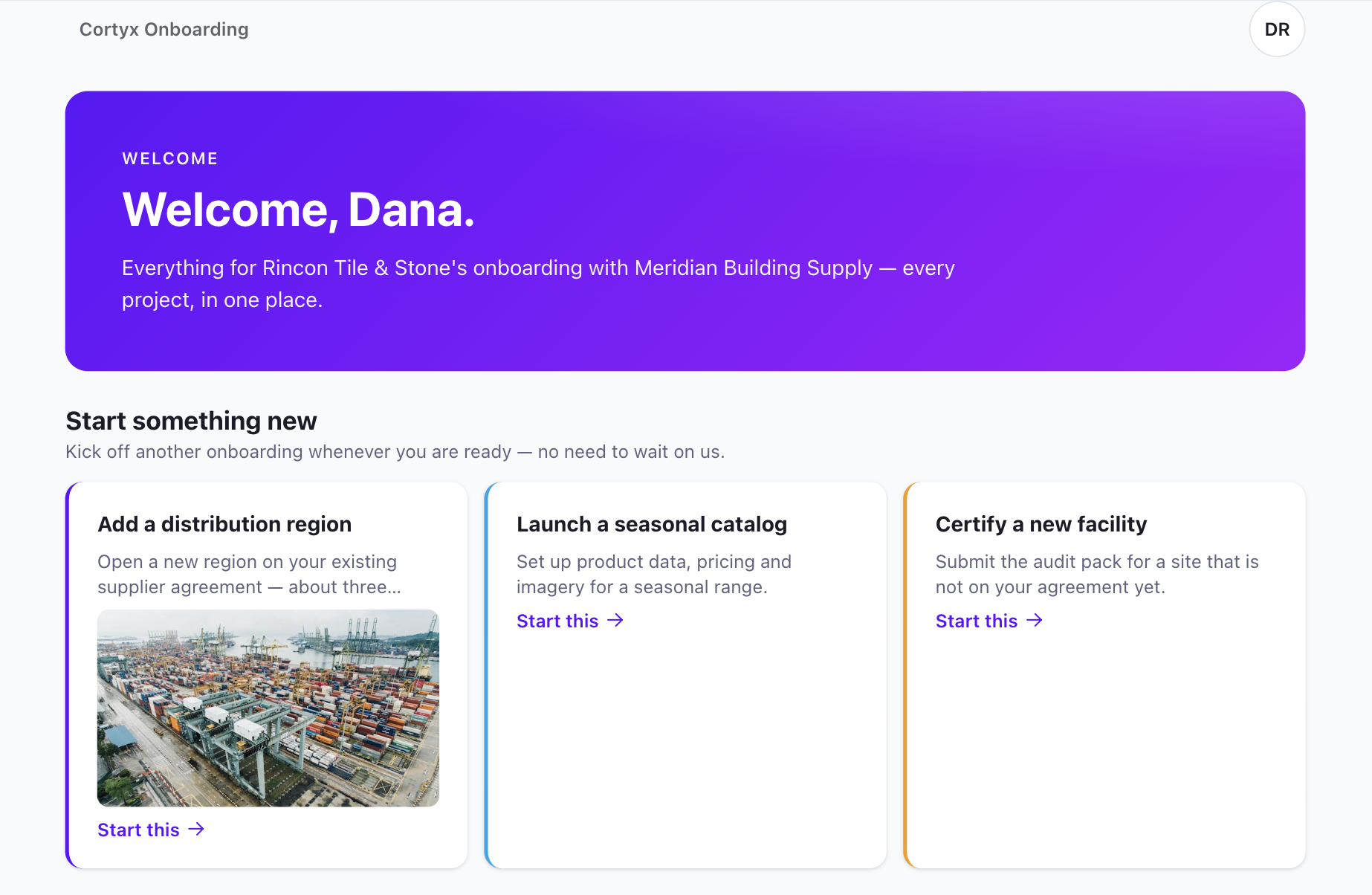
What is on the card comes from three places:
What | Where you set it
|
|---|---|
Card title | Customer Facing Name on the playbook (falls back to the playbook’s own name) |
Card description | Customer Facing Description on the playbook |
Card image or media | Portal cover image on the playbook |
Accent colour | The playbook’s own colour |
Section heading and intro | Settings → Portal → Self-Service Section Title / Description |
In Portal Studio
If your portal is built in Portal Studio, add the Start a project widget to an account or project page. It has three optional props — Title, Intro, and Empty message. Leave the first two blank to keep the section copy from your portal settings. One per page.
Left with a blank empty message, the whole section disappears when a customer has nothing to start, rather than showing an empty box. Write one only if you want something in its place.
When a customer starts one
The customer clicks a card, gets a short confirmation, and confirms. Everything below then happens at once, and they land in the new project.
A project is created from the playbook, named after your customer-facing name.
It is attached to the customer’s account and set to Active.
The owner is resolved by your chosen method, and internal role assignees are applied.
The planned go-live is set from the playbook’s own duration.
The customer is added to the project and picks up every unassigned customer task.
The project is flagged as started from the portal, so it is counted separately in reporting.
There is no approval step. A customer with access can start the playbook as many times as they like, so if that is a concern, keep the audience tight.
The account’s view
The playbook settings answer “which accounts can start this?”. The account’s Self-Serve tab answers the reverse.
Open a customer in Customers and choose the Self-Serve tab. For each playbook this account can start you get:
How they have access — Assigned (picked by hand), Via rule (matched, and may change as their data changes), or All accounts (the playbook is open to everyone).
How many projects the account has generated from it, and how many are in progress or completed.
An expander listing those projects with their status, start date, and the customer users on each.
Add to playbook assigns this account to another self-serve playbook without opening the playbook itself. It only ever adds — it cannot disturb assignments made elsewhere. Playbooks already open to all accounts are never offered here, because adding one account would narrow the playbook to just that account.
Versions and drafts
Self-service settings are operational config on the live playbook, not playbook content. They apply immediately to the published version and are not part of a draft, so adding an account or editing a rule never requires cutting a new version — you can do it from a draft or the published row and it lands in the same place either way.
The customer portal a playbook opens in is also shared across every version. Projects already running keep the portal they launched with.
Every self-service change is written to the playbook’s Activity tab — the toggle, the owner, the owner method, the copy, and each account added or removed, with whether it came from a person or from the rule. Very large changes are grouped into a single entry rather than one per account.
Turning it off
Flip the toggle in the Self-Service Settings header off. The playbook disappears from every portal immediately. Your account assignments and rule are kept, so turning it back on restores the same audience.
Projects customers have already started are untouched — they carry on as normal projects.
Permission. Anyone who can edit the playbook can turn self-service on. Only an Super Admin can turn it off, because doing so takes a live playbook away from every account at once. The confirmation tells you how many accounts are affected.
Who can do what
Action | Super Admin | Creator | Collaborator
|
|---|---|---|---|
Turn self-service on | Yes | Yes | No |
Turn self-service off | Yes | No | No |
Edit owner, assignees, and customer-facing copy | Yes | Yes | No |
Change account assignments | Yes | Yes | No |
Create, edit, or remove an audience rule | Yes | Yes | No |
Add an account from its Self-Serve tab | Yes | Yes | No |
Set the portal a playbook opens in | Yes | No | No |
Super Admins can do everything in this table.
Troubleshooting
My playbook isn’t showing in the customer’s portal
Work down this list — the first failing item is almost always the cause:
Self-service is toggled on.
A Project Owner is set. Without one the playbook is filtered out entirely.
Every Default Org Task Assignee role has someone in it.
The playbook is published, active, and not archived.
The customer’s account is in the audience — check the account’s Self-Serve tab, which shows exactly what that account can start.
The account is not disabled, and the person is a customer user attached to it.
My rule matches accounts I know exist, but nobody has access
The saved rule and the last sync are two different things. If the footer says the rule saved but the sync did not finish, only accounts added by hand have access — press Sync now. If you have unsaved edits, the matched list still describes the old rule; press Save & sync.
The rule matched everyone I expected, but the panel says accounts were held
The removal safety net fired: a nightly or on-demand sync tried to strip access from more than 25 accounts, or more than half the rule-only audience. Additions were applied; the removals are waiting. Confirm the rule is correct, then use Apply removals.
Everyone suddenly has access to a playbook that was restricted
With no rule set, an empty account list means every customer account. Something cleared the list. Open the access panel — the summary line at the top states exactly who has access right now — and either re-add the accounts or switch to a rule.
Projects are landing with the wrong owner
Check which ownership option is selected. The account’s current project owner reads the owner of that account’s most recent project of any status, including completed ones. If that person has been deactivated or deleted, or the data field you point at is empty or was deleted, the fallback owner is used instead.
I can’t find the “Accounts matching a rule” option
Audience rules are enabled per organization. Ask your OnRamp contact to turn them on. If a rule was set up before and the feature is later switched off, the rule keeps working and stays visible so you can still see and remove it — you just cannot create a new one.
An account is assigned but doesn’t appear in the list
Archived and otherwise unavailable accounts are counted but not shown, and the panel says how many. They stay assigned and are carried through every save — nothing is silently dropped.