Embed the Customer Portal in Another Application
Last updated: July 16, 2026
Integration Guide · OnRamp Platform
How to surface a customer's live OnRamp onboarding progress — status, percent complete, and a full portal view — directly inside your own product or application.
What you're building
Your product already knows who's logged in. OnRamp already knows how their onboarding is going. This guide connects the two: a live view of a customer's OnRamp project, rendered inside your own UI, authenticated automatically — the person never sees an OnRamp login screen.
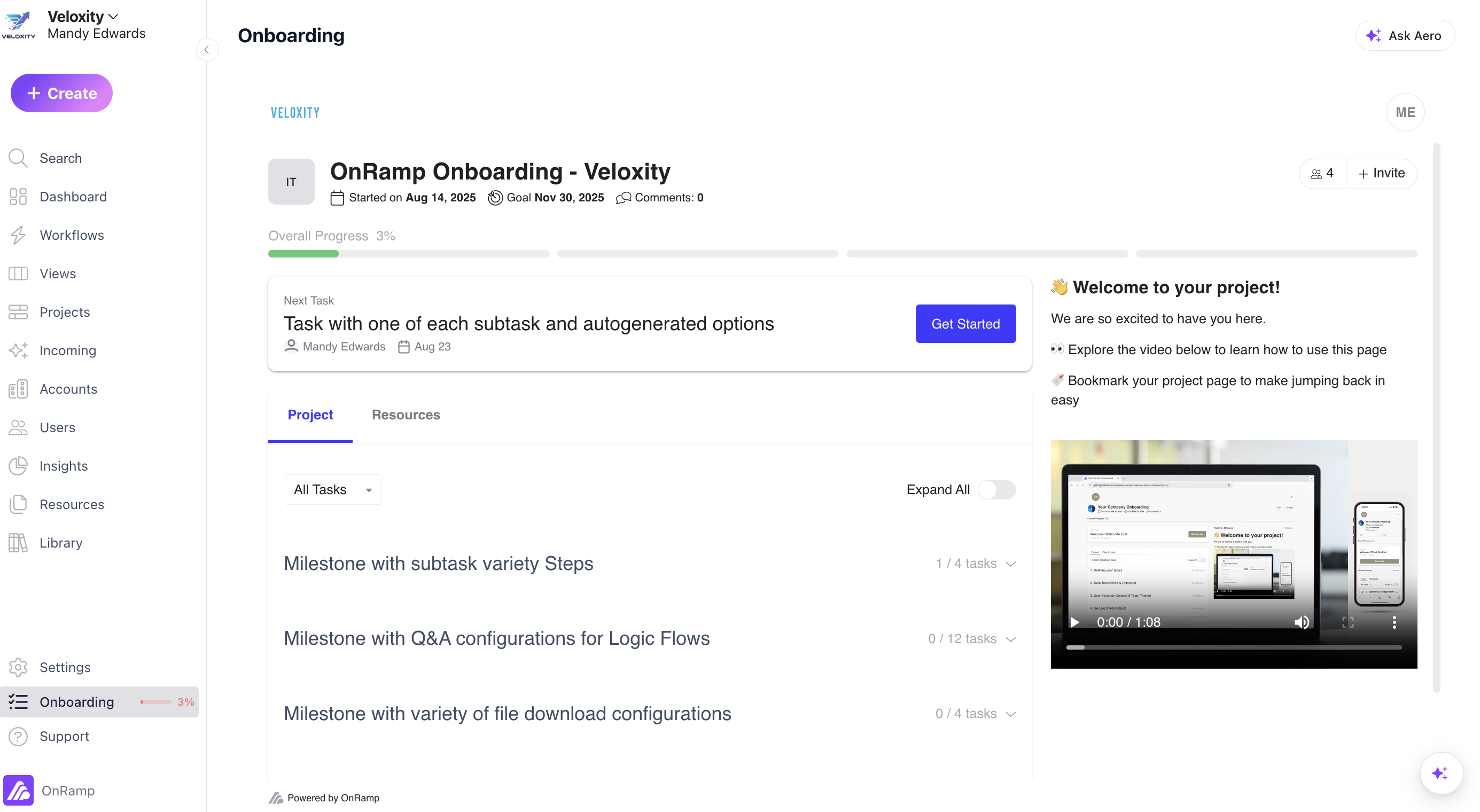
This is the same pattern OnRamp uses internally: our own org dashboard embeds a customer-portal view for onboarding, in exactly the shape described below.
Navigate to https://app.onramp.us/dashboard/settings/widget/embed
Custom embed via the JSON API (recommended)
Call one endpoint from your backend, get back project data plus a ready-to-use portal link, and render it however fits your product — a card, a full page, or an <iframe> like the picture above. This is what OnRamp's own dashboard uses internally, and it's the right default for most integrations — want something even faster to stand up instead? See Additional option below.
1. Confirm the user is signed in — on your side
FastPass trusts the email you send it. Only reach step 2 after your own auth has already verified that this browser belongs to that person.
2. Request the project data
From your backend (keeps the request server-to-server):
bash
curl "https://app.onramp.us/api/widget/data" \ --data-urlencode "org_id=YOUR_ORG_KEY" \ --data-urlencode "email=customer@theircompany.com" \ --data-urlencode "fast_pass=1"3. Read project_link from the response
With fast_pass=1, project_link is already a single-use sign-in link into that exact project — not a bare portal URL.
NOTE: To enable the user auto logged in enable the fast pass option in the widgets page and publish changes.
json
{ "status": 200, "success": true, "data": { "project_name": "Acme Co. Onboarding", "percent_complete": "62", "days_remaining": "9", "project_link": "https://acme.onramp.us/api/portal/fast-pass?t=...&email=..." }}4. Render it
Put project_link straight into an iframe, or a "Continue onboarding" button — either way, the link itself does the signing-in.
html
<iframe src="{{ project_link }}" title="Onboarding progress" style="width:100%;height:100%;border:0"></iframe>Request a fresh project_link every time the embed loads — see why in How the sign-in works.
ℹ Tracking more than one project? Omit any single-project match and the response instead returns project_count, a portal_link to the project list, and a projects array — each entry carries its own project_link. See API reference.
How the sign-in works
Both embed options mint the same thing: a FastPass token — a one-time, 60-minute credential tied to one person at one organization. It isn't a password or a session you manage; it's a link that logs itself in.
What makes this safe to embed
The portal session lives entirely inside the iframe's own cookie jar — on the portal's subdomain, not yours. Your dashboard's session is never touched, in either direction.
The token is single-use. The moment it's redeemed, it's deleted. That's why the JSON API path asks for a fresh project_link on every view rather than caching one — a reused link just bounces to a normal portal sign-in screen, pre-filled with the right email, instead of failing silently.
API reference
Request
GET /api/widget/data — also accepts POST with the same fields as form data.
Param | Type | Required | Description |
|---|---|---|---|
| string | Required | Your organization key, from Settings → Widget. Safe to use client-side — it identifies your org, it doesn't grant access by itself. |
| string | Required | The signed-in customer's email, already verified by your own auth. |
| string | Optional | Pass |
| string | Optional |
|
Response — single active project
Field | Type | Description |
|---|---|---|
| string | Display name of the matched project. |
| string | 0–100, as a string. |
| string | Negative when the target end date has passed. |
| string | Project timeline. |
| string | URL of the customer's logo, if set. |
| string | Deep link into this project — a FastPass URL when |
Response — multiple projects
Returned instead of the single-project shape when the customer has more than one active project.
json
{ "data": { "project_count": 2, "portal_link": "https://acme.onramp.us/portal/", "projects": [ { "project_name": "Phase 1 Rollout", "project_link": "..." }, { "project_name": "Phase 2 Rollout", "project_link": "..." } ] }}Status & health, at a glance
If you're building your own status chip instead of using project_link, drive its color from these three states rather than inventing your own thresholds:
🟢 On track 🟡 At risk 🔴 Off track
Additional option: drop-in widget (script tag)
Not ready to write a backend integration, or just need a status pill on a support page? This script tag gets something live in minutes — at the cost of the placement and styling control the JSON API above gives you. Copy it from your OnRamp dashboard under Settings → Widget — it's pre-filled with your organization key and loader URL — and paste it anywhere in your page.
html
<script> (function (w, d, s, o, f, js, fjs) { w['OnRampWidgetObject'] = o; w[o] = w[o] || function () { (w[o].q = w[o].q || []).push(arguments) }; js = d.createElement(s); fjs = d.getElementsByTagName(s)[0]; js.id = o; js.src = f; js.async = 1; fjs.parentNode.insertBefore(js, fjs); }(window, document, 'script', '_onramp_widget', /* loader URL — auto-filled when you copy this */ 'URL_GOES_HERE')); _onramp_widget({ organization: 'YOUR_ORG_KEY', // auto-filled — Settings → Widget user: currentUser.email, // the signed-in user on *your* site scheme: 'plaintext', fast_pass: '1' // omit to link out without auto sign-in });</script>⚠ Turning on fast_pass requires a checkbox An org admin must explicitly enable FastPass in the Widget settings and accept a warning that it auto-signs-in whoever the user email says is logged in. Only turn it on once your own login already gates access to the page carrying this snippet — see Security checklist.
Security checklist
Your own auth runs first. Only request a FastPass link for a user your product has already authenticated on the current request — the email you send is trusted as-is.
Request per view, don't cache. Each link is single-use; fetch a new one whenever the embed mounts.
Serve your product over HTTPS. The portal cookie is scoped to its own domain regardless, but mixed content will block the iframe in most browsers.
Keep the widget-data call server-side where you can. It's not required —
org_idis a public identifier — but it keepsemailresolution close to your own session logic.
Troubleshooting
The iframe shows a normal OnRamp login screen The link was already used, expired (60 min), or wasn't a FastPass link at all. This is deliberate — a dead link fails safe into a login form pre-filled with the right email, not a broken page. Fetch a fresh project_link and re-render.
Nothing renders — available: false / no matching project Confirm the email exactly matches an active customer member on an active project under your org_id. Archived or completed projects, and deactivated members, don't match.
Do I need to build my own login bridge? No — that's the point of FastPass. If you find yourself designing a token-passing scheme of your own, you're rebuilding what fast_pass=1 already gives you.
OnRamp Platform · Integration Guide — Questions on your specific setup? Reach out to your OnRamp implementation contact.