Aero Project Brief & Actions
Last updated: May 20, 2026
Your project overview page is the first place you land when you open a project — and it's where Aero does its most useful work.
Every weekday morning, Aero reads the current state of the project and surfaces two things at the top of the page: a short brief on where things stand, and a list of recommended actions you can take in one click.
This article covers what each of those does, when they update, and what triggers the actions Aero recommends.
The Aero Project Brief
The Aero Project Brief is a short paragraph at the top of the project overview page that summarizes the current state of the project — completion progress, risk signals, customer engagement, and anything notable Aero thinks you should know.
It's designed to give you a 10-second read on the project before you do anything else.
What goes into it
Overall completion and any tasks blocking forward progress
Overdue tasks, unassigned work, and unreplied comments
Customer engagement signals — recent logins, portal visits, and activity
Anything Aero flags as a risk or a positive signal worth highlighting
One brief is generated per agent run, and the latest brief always replaces the previous one. You won't see stale briefs piling up.
Recommended Actions
Below the brief, Aero shows a list of recommended actions tied to specific tasks, comments, or assignees in your project. Each row includes:
A short rationale — why Aero is recommending this action
A one-click action button — Send Nudge, Reply, or Reassign
A dismiss control — clear the recommendation if it's not relevant
You can filter the list by action type using the tabs at the top: All, Nudge, Comment, and Reassign.
How Aero Decides What to Recommend
Every time Aero runs, it walks through the project and decides which recommendations to surface. Here's how each action type works.
Health summary
Always generated. One brief per agent run. This is the paragraph that powers the Aero Project Brief at the top of the page.
Nudge
A nudge recommends sending a friendly poke to the customer assignee on a stuck task. Aero will recommend a nudge when all of the following are true:
It's a customer task
The task is not complete
The task has not been deleted
The task is overdue by at least 2 days
Reassign
A reassign recommends moving a task to a different customer-side owner because the current assignee is overloaded and disengaged. Aero will recommend a reassign when the nudge criteria above are met AND both of these are also true:
The current assignee has at least 5 open tasks assigned to them
The current assignee's last action was 5 or more days ago
If both nudge and reassign would apply to the same task, reassign wins — Aero recommends moving the task rather than nudging someone who isn't engaging.
Comment
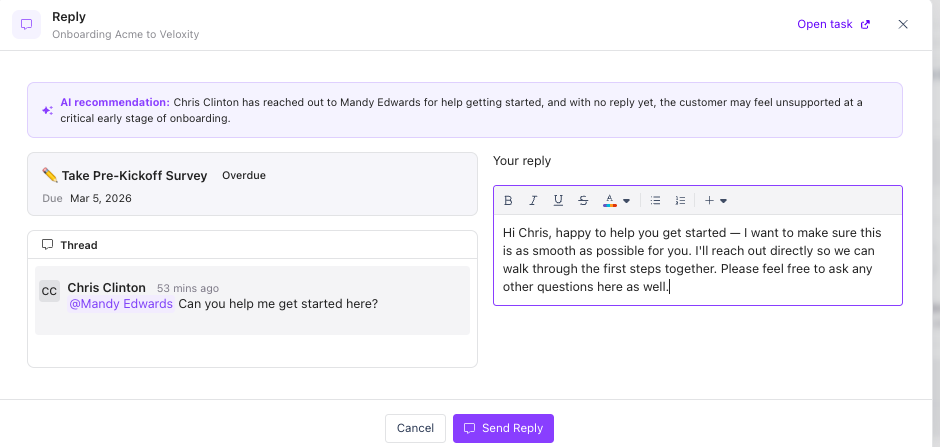
A comment recommendation prompts you to reply to a customer comment that hasn't been addressed yet. Aero will recommend a reply when:
The comment hasn't had a reply and Aero was launched.
This is designed to pickup any comment during the day that wasn't replied to as well as show comments immediately if Aero is launched manually.
It's a top-level comment — replies inside an existing thread are ignored
Comments are differentiated on the page for internal & customer comments
AI generated reply helps the team get started quickly with a potential response.
Navigate to the task itself as needed.
When Aero Runs
Aero updates automatically in the background and can also be run on demand.
Automatic updates: Aero monitors your projects and refreshes overnight when things have changed. If activity has happened on a project — tasks completed, updates made, comments added — Aero will have a fresh analysis ready for you when you come online the next day.
On-demand re-run: Use the Launch Agent button on the Project Brief card to run Aero whenever you want the freshest take. This is useful after you've made changes to the project, completed a batch of tasks, or had a customer call that may have shifted the picture.
A few things worth knowing:
Each run replaces the existing brief and refreshes the recommended actions list, so you're always working from the most recent analysis.
If you manually run Aero during the day, that project won't be included in the overnight refresh. If new activity happens on the project after that, it will be picked back up automatically.
Best Practice: Start Your Day Here
The fastest way to get value from Aero on the project overview is to make it your first stop:
Read the brief
Scan the recommended actions
Send the nudges and replies that make sense, dismiss the rest
Re-run with Launch Agent if you've made changes and want an updated view
A few minutes here can replace a much longer manual sweep through tasks, comments, and assignees.
Next Step
Once you've worked through Aero's recommendations, you're ready to:
Dive into individual tasks or modules that need attention
Open Aero chat to ask follow-up questions about the project
Move on to your next project — and let Aero do the morning sweep again tomorrow