What Your Customers Will See When Invited to OnRamp
Last updated: March 20, 2026
When you invite your customers (end users) into OnRamp, their experience is simple and consistent. Below is exactly what they will see and the steps they’ll go through.
Overview of the User Experience
Most users will access your OnRamp projects in two steps:
Receive an invite email and click button in that email
Confirm access in their browser
Instantly enter their project
All emails from OnRamp to your customers will have your company name as the sender and notifications@onramp.us as the email address.
Step 1: Invite Email
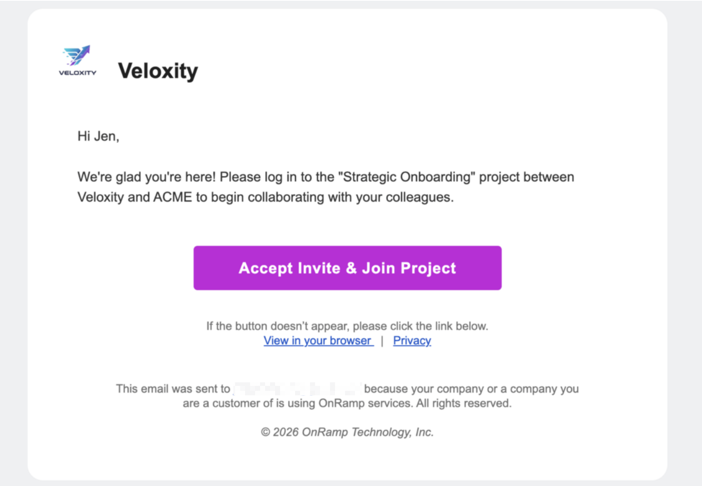
Your customer will receive an email inviting them to join a project.
What they’ll see:
Your company logo and company name
A welcome message
The name of the project (e.g., Strategic Onboarding)
A prominent button: “Accept Invite & Join Project”
What they do:
👉 Click Accept Invite & Join Project
Step 2: Browser Confirmation
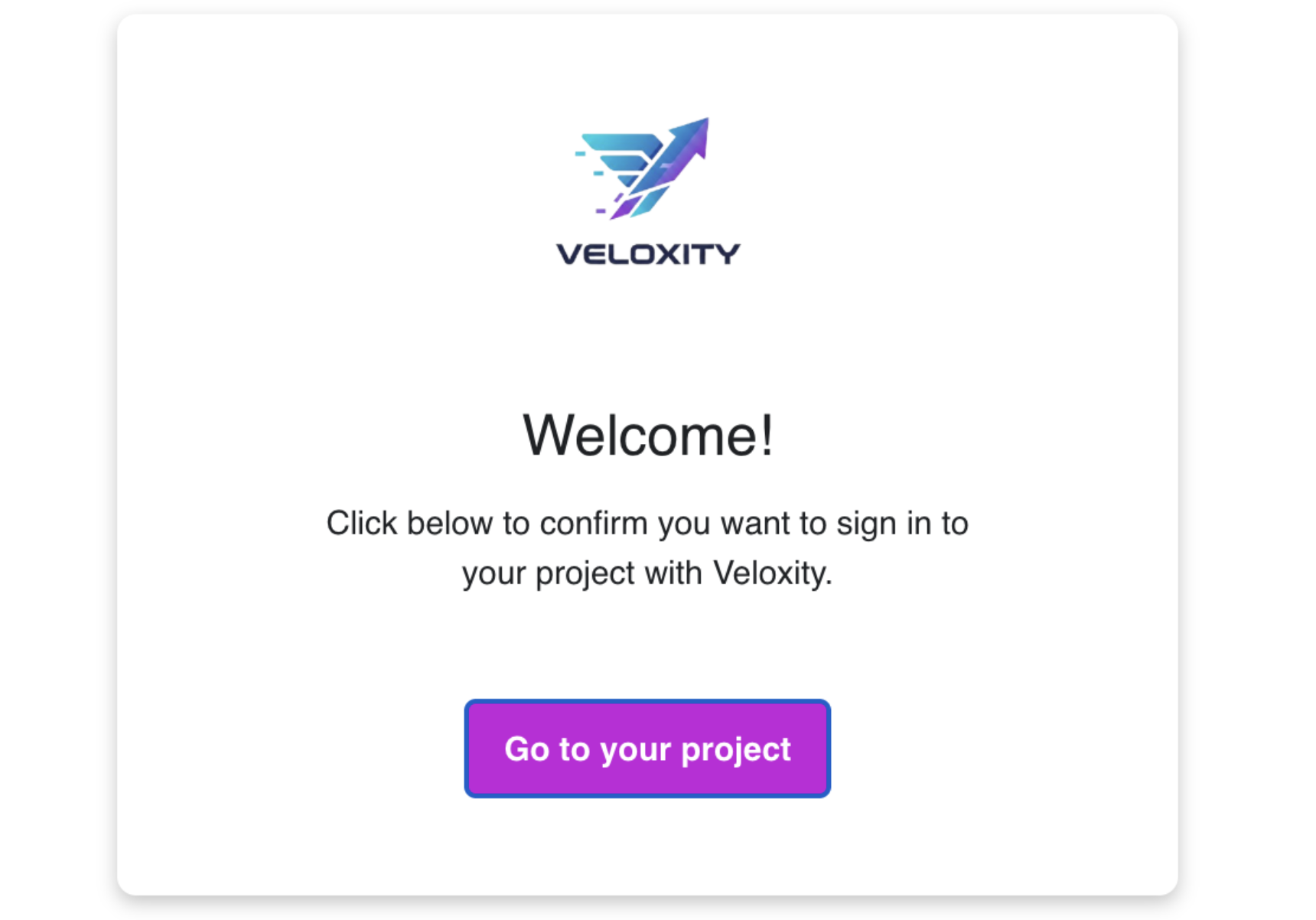
After clicking the invite, they’ll be taken to a confirmation page in their browser only if this is their first time accessing your customer portal. If they have done this step before, they'll skip it and go straight to the project!
What they’ll see:
A welcome screen
A message including your logo and company name
A button: “Go to your project”
What they do:
👉 Click Go to your project
Step 3: Instant Project Access
After confirming:
They are taken directly into the assigned project
They can immediately begin collaborating and completing tasks
If the User Is Not Assigned to a Project
If a user is invited to your OnRamp space but not added to a specific project:
They will land on your company's Portal homepage instead of a project.
From there, they can see available projects (if assigned later).
What This Means for You
The experience is guided and click-based — no setup required from your users.
Your customer will access their projects instantly, with no password or pin needed.
Their access is still secure.
Common Questions You May Get from Your Customers
“Where do I start?”
→ Click the invite email button
“Why don’t I see a project?”
→ They may not have been assigned to one yet
“Do I need to create an account?”
→ No — access is handled through the invite flow