Workflows: Assigning Project Owners Based on Deal Data
Last updated: August 3, 2026
Automatically Assigning a Project Owner Based on Your Data
Category: Automations & Workflows
By default, every project created from a playbook gets the same owner. But you may not want that: for example, larger accounts might go to a senior CSM while smaller accounts go to a different team member. Instead of manually reassigning projects one by one, you can set this up once in your workflow so it happens automatically, every time.
This article covers how conditional owner assignment works and how to set it up.
How It Works
In your workflow's Project Owner card, you can add one or more conditions — rules that check a field on the record that triggered the project (like a deal amount or contract value) and assign a different owner depending on what it finds.
To find the Project Owner card, navigate to a Workflow, then scroll down in the flow.
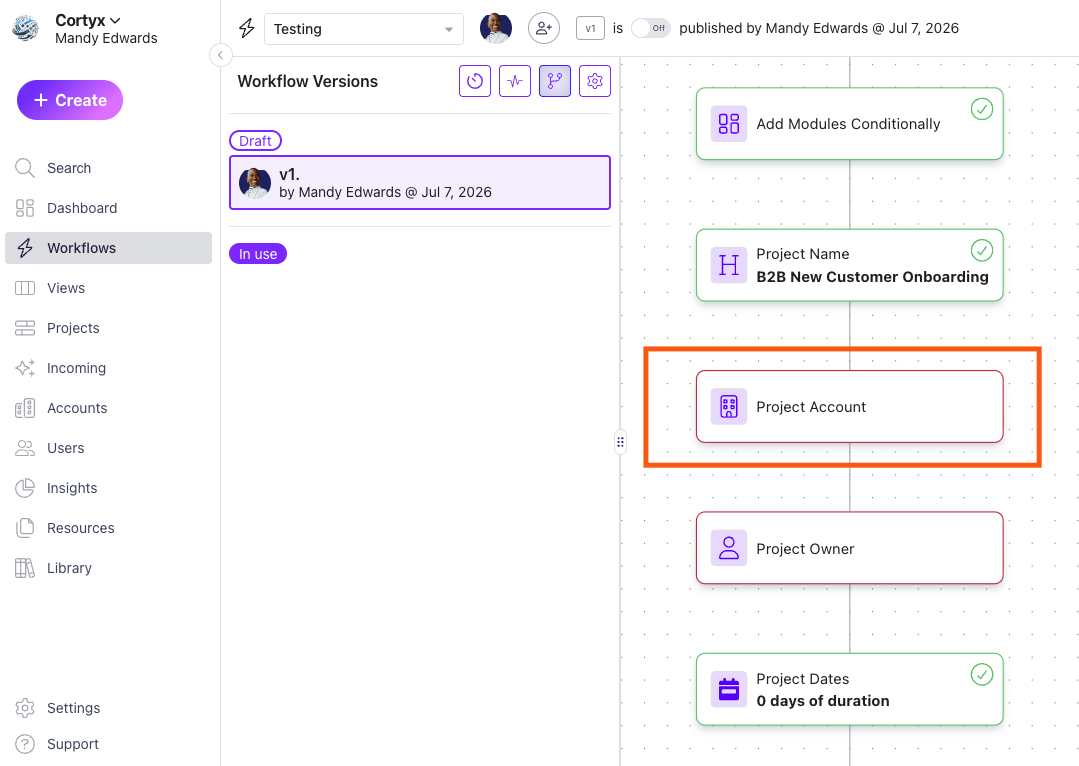
Each condition includes:
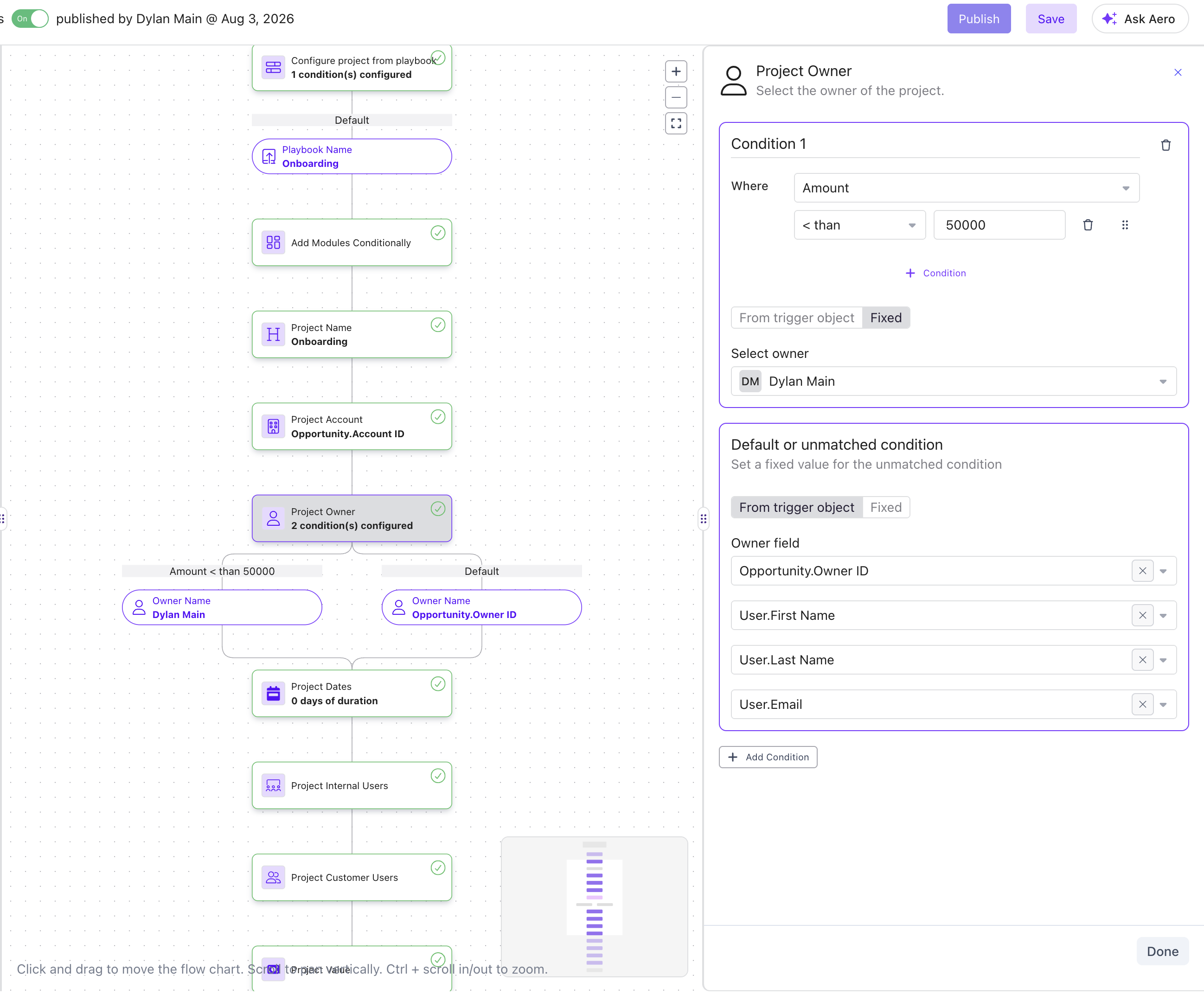
A field to check — for example, Amount
A comparison — for example, "less than," "greater than or equal to"
A value — for example, 50000
Who to assign — either a specific person you choose, or a value pulled dynamically from the triggering record itself (like the Opportunity Owner from your CRM)
If you don't add any conditions, every project uses the same default owner. If you do, OnRamp checks your conditions in order, from top to bottom, and assigns the owner from the first condition that matches.
Note that in this example, Dylan will be assigned every project for accounts less than $50000 ARR:
Setting a Fallback Owner
Every Project Owner card also includes a Default or unmatched condition section. This is what happens when a record doesn't match any of your conditions — for example, if the Amount field is missing entirely.
You can set this fallback to a fixed person, or map it from fields on the triggering record (owner ID, first name, last name, email) so the assigned person's full profile carries through correctly.
Example
A common setup: assign smaller accounts to a specific onboarding specialist, and let larger accounts default to whoever already owns the deal in your CRM.
Condition | Rule | Assigned Owner |
|---|---|---|
Condition 1 | Amount < 50,000 | Fixed: a specific team member |
Default (unmatched) | Everything else | From trigger object: Opportunity.Owner ID |
Because conditions are evaluated top to bottom, anything under $50,000 hits Condition 1 and stops there. Everything else falls through to the default and picks up the Opportunity Owner from your CRM automatically.
A Few Things to Keep in Mind
Order and overlap matter. Conditions are checked in the order you list them, and the first match wins. If two conditions could both be true for the same record, only the first one you've listed will apply — so it's worth double-checking your ranges don't overlap or leave gaps.
Where should this rule live? If the value driving your assignment — like account tier or deal size — is already tracked and kept up to date in your CRM, it's often easier to let your CRM determine the owner and simply pass that value into OnRamp. That way, if your team's rules change later, you're only updating them in one place. Conditional logic inside OnRamp is a better fit when the field you're checking only exists in OnRamp, or the rule is specific to your onboarding process itself.
Always set a default. Records that don't match any condition still need an owner — make sure your Default or unmatched condition is configured, not left blank.
Frequently Asked Questions
Can I use more than one field to decide the owner?
Yes. You can add multiple conditions within the same rule, and multiple separate condition blocks, each checking different fields.
What happens if a record matches more than one condition?
Only the first matching condition (from the top down) is used — later conditions are ignored for that record, even if they'd also match.
Do I need to keep this updated if our pricing tiers change?
If the underlying value (like deal size bands) is only set in OnRamp, yes — you'll need to update the condition manually. If it's driven from your CRM, updating it there is usually enough.
Can the fallback owner be different from all the listed conditions?
Yes — the Default or unmatched condition is independent and can be set to a fixed person or a dynamic field, regardless of what your other conditions do.